> ## Documentation Index
> Fetch the complete documentation index at: https://docs.crafter.net.tr/llms.txt
> Use this file to discover all available pages before exploring further.
# Ticket Management
> Review, filter, assign, and resolve player support tickets and configure departments.
The Crafter Ticket Management module provides a unified helpdesk workflow for your staff team to resolve player inquiries, account disputes, and payment tickets.
Navigate to [Dashboard > Tickets](https://app.crafter.net.tr/tr/dashboard/tickets) to inspect support queues.
 ***
## Quick Navigation & Overview
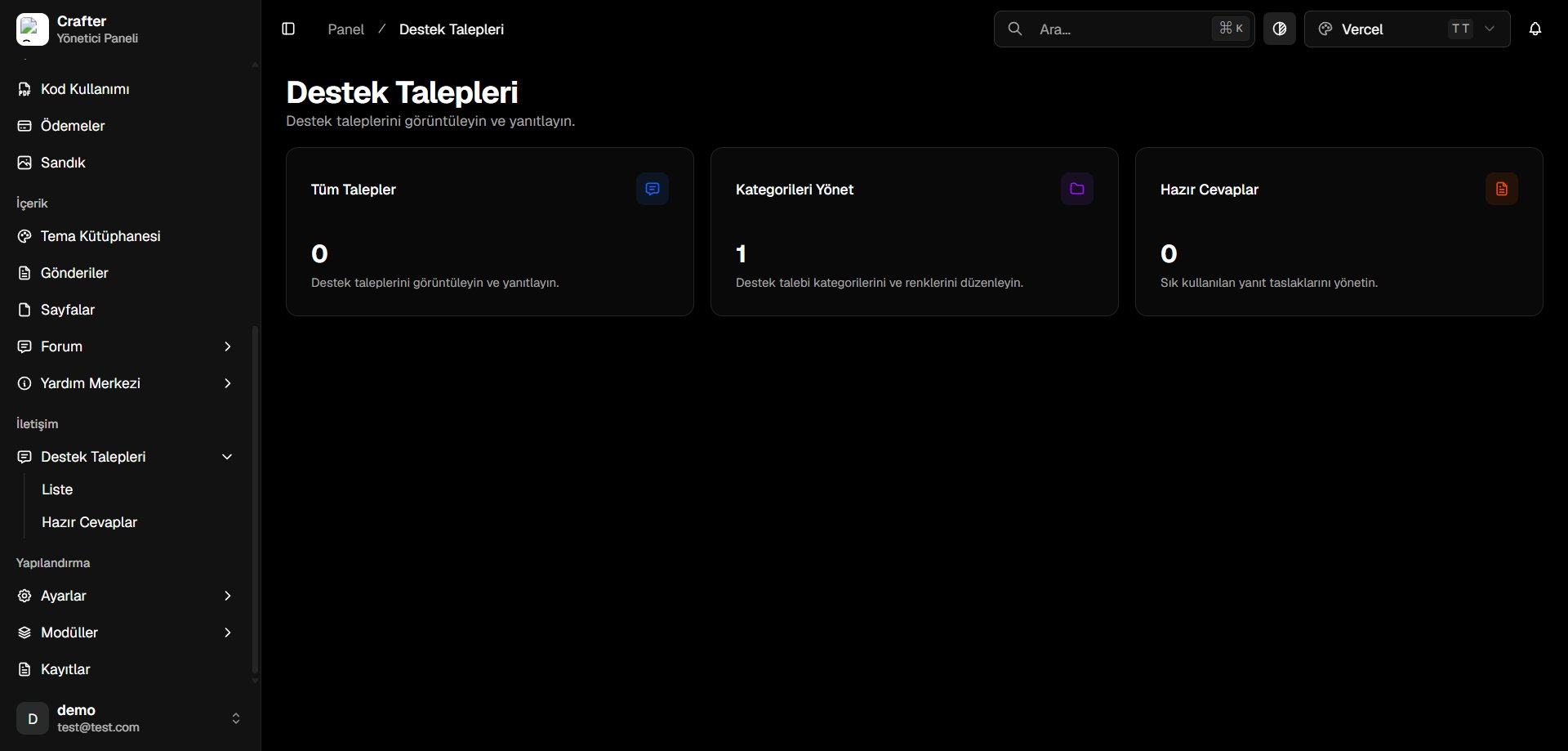
* **All Tickets:** Total volume of support requests with instant list filtering.
* **Manage Categories:** Organize tickets into colored departments (Technical Support, Billing, Bug Reports).
* **Canned Responses:** Manage pre-written macro responses for rapid resolution.
***
## Managing & Filtering Tickets
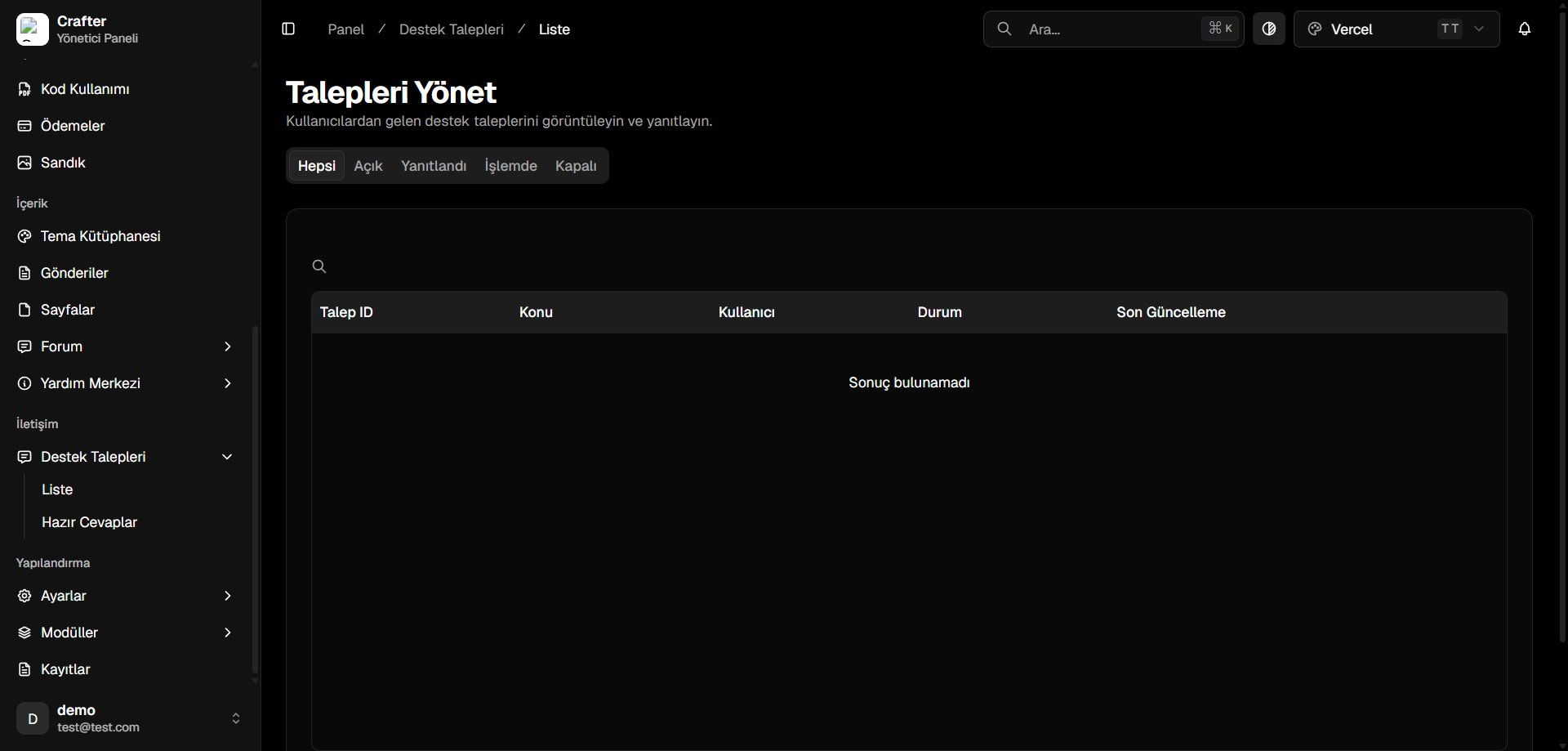
Inspect all tickets at [Dashboard > Tickets > List](https://app.crafter.net.tr/tr/dashboard/tickets/list).
***
## Quick Navigation & Overview
* **All Tickets:** Total volume of support requests with instant list filtering.
* **Manage Categories:** Organize tickets into colored departments (Technical Support, Billing, Bug Reports).
* **Canned Responses:** Manage pre-written macro responses for rapid resolution.
***
## Managing & Filtering Tickets
Inspect all tickets at [Dashboard > Tickets > List](https://app.crafter.net.tr/tr/dashboard/tickets/list).
 ### Status Filters
* **All:** Full ticket repository.
* **Open:** Newly created requests awaiting first staff reply.
* **Answered:** Staff responded; awaiting player feedback.
* **In Progress:** Under active investigation.
* **Closed:** Resolved inquiries.
***
## Ticket Categories & Departments
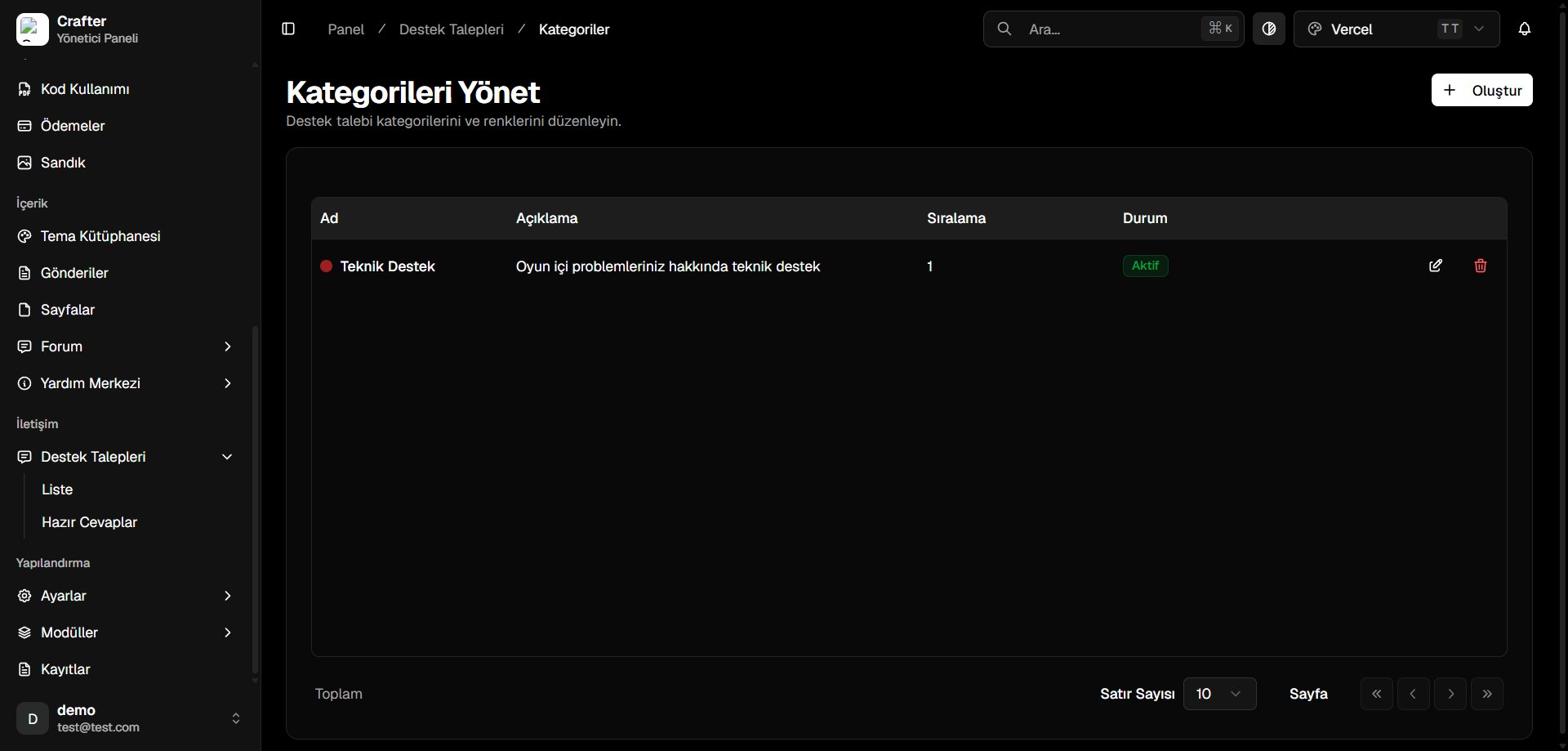
Color-code departments for easy triage at [Dashboard > Tickets > Categories](https://app.crafter.net.tr/tr/dashboard/tickets/categories).
### Status Filters
* **All:** Full ticket repository.
* **Open:** Newly created requests awaiting first staff reply.
* **Answered:** Staff responded; awaiting player feedback.
* **In Progress:** Under active investigation.
* **Closed:** Resolved inquiries.
***
## Ticket Categories & Departments
Color-code departments for easy triage at [Dashboard > Tickets > Categories](https://app.crafter.net.tr/tr/dashboard/tickets/categories).
 ### Creating a Category
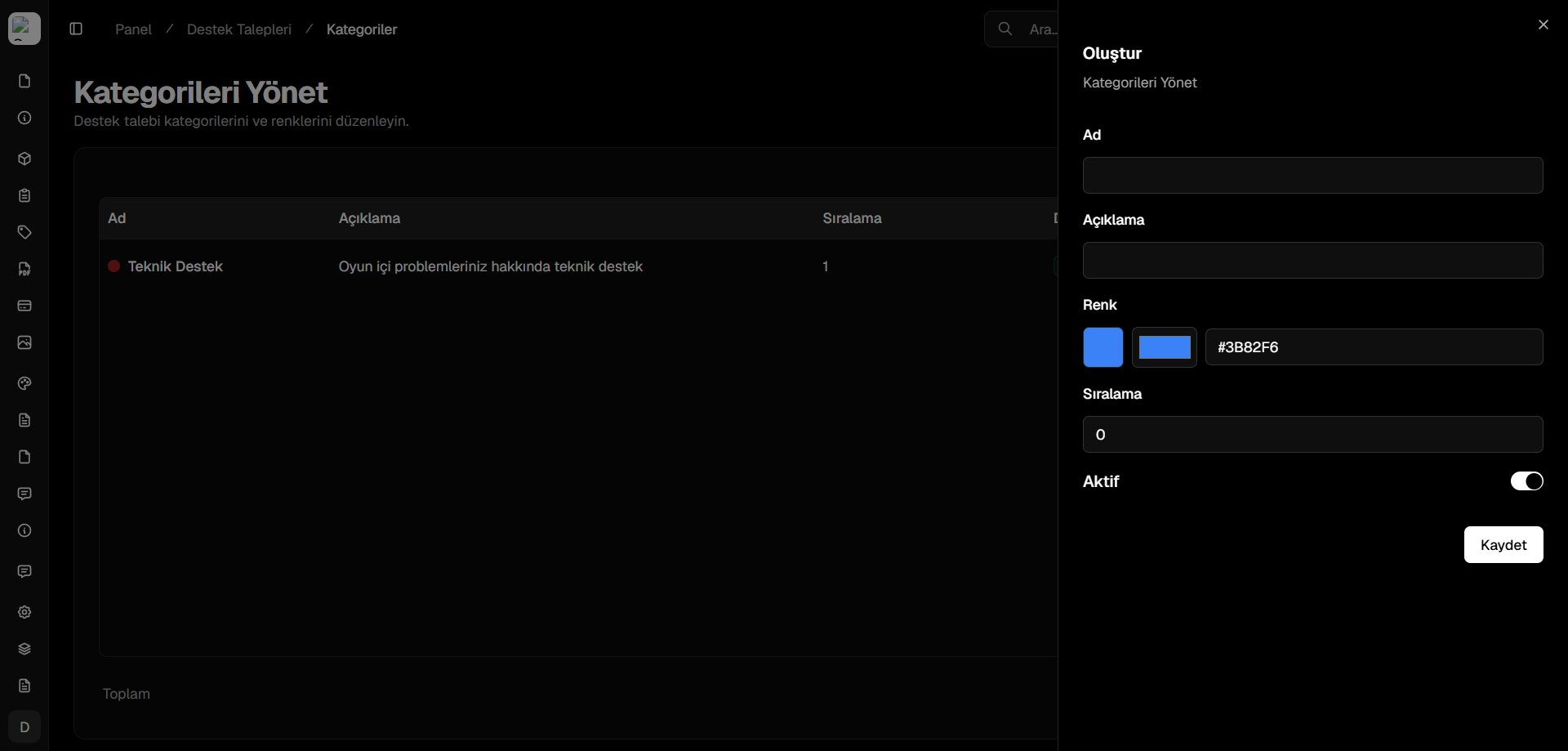
Click **+ Create** on the Categories page.
* **Name:** Title (e.g., *Billing Inquiries*, *Bug Reports*).
* **Description:** Purpose and scope.
* **Color:** HEX accent color (e.g., `#3B82F6`).
* **Sort Order:** Priority index.
* **Active:** Publish toggle.
Click **Save** to activate.
### Creating a Category
Click **+ Create** on the Categories page.
* **Name:** Title (e.g., *Billing Inquiries*, *Bug Reports*).
* **Description:** Purpose and scope.
* **Color:** HEX accent color (e.g., `#3B82F6`).
* **Sort Order:** Priority index.
* **Active:** Publish toggle.
Click **Save** to activate.