> ## Documentation Index
> Fetch the complete documentation index at: https://docs.crafter.net.tr/llms.txt
> Use this file to discover all available pages before exploring further.
# Canned Responses (Templates)
> Create pre-written response macros and automated ticket opening messages.
The Crafter Canned Responses module empowers support agents to deliver quick, consistent answers to repetitive questions and standard operating procedures.
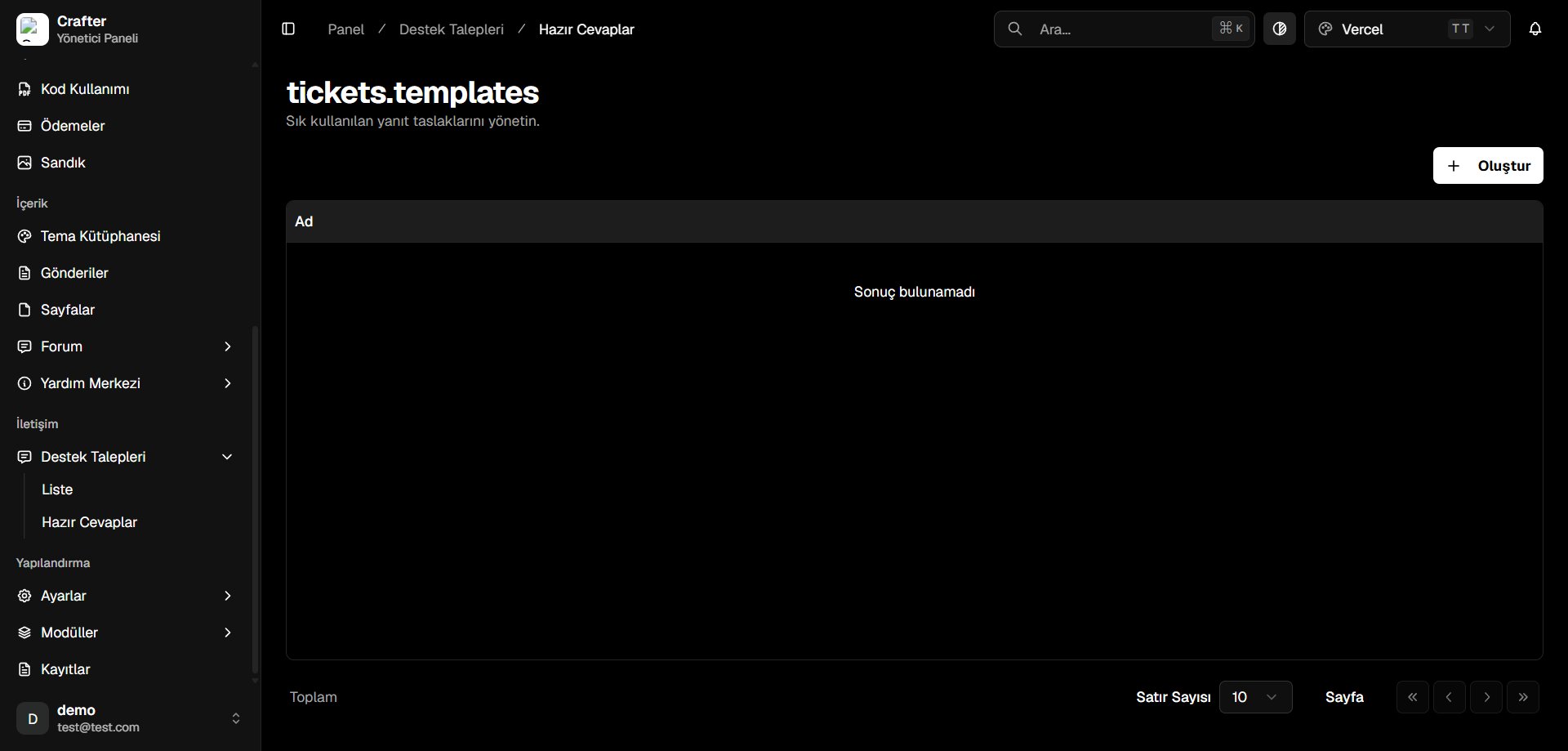
Navigate to [Dashboard > Tickets > Templates](https://app.crafter.net.tr/tr/dashboard/tickets/templates) to manage template macros.
 ***
## Creating a Response Template
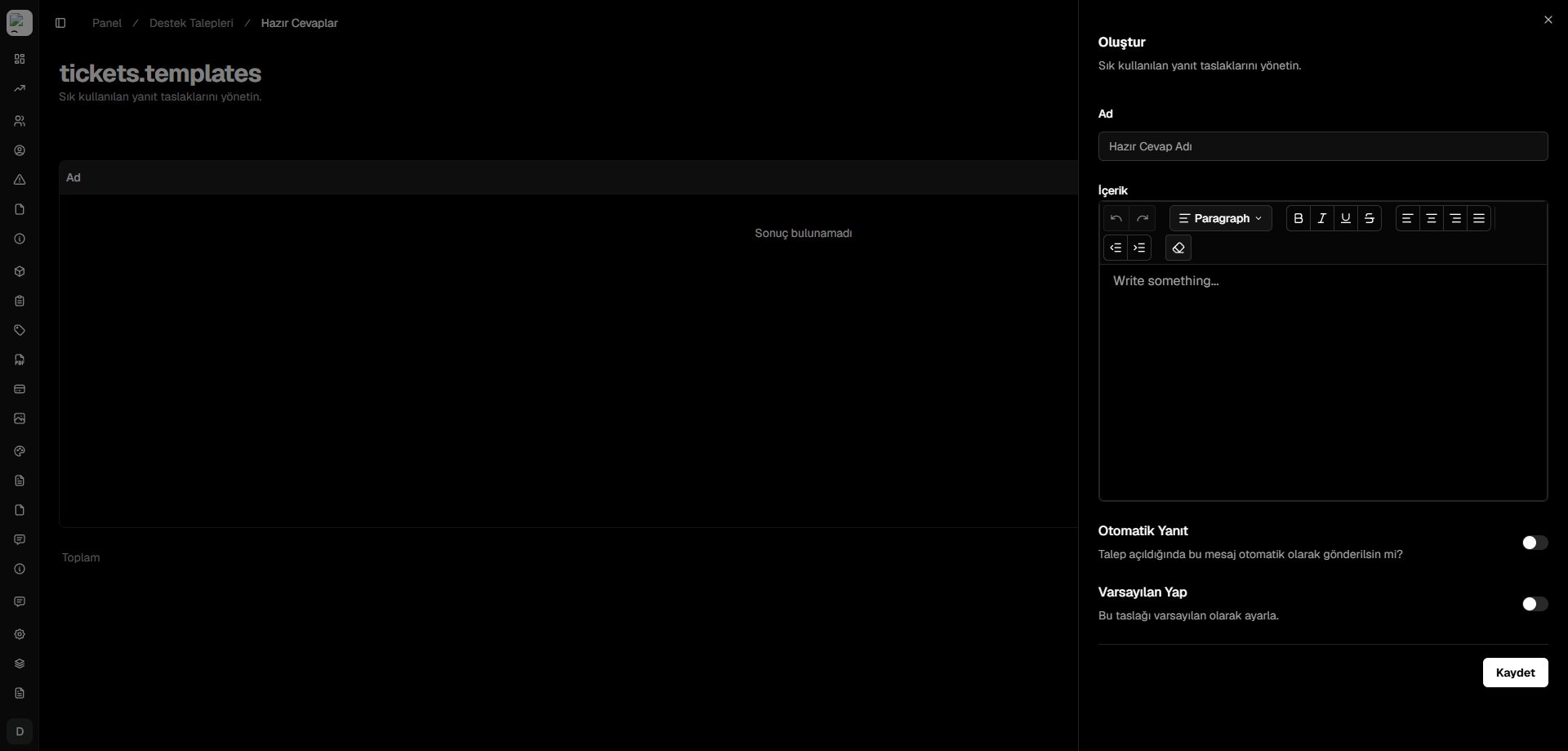
Click **+ Create** in the top right corner.
* **Name:** Title or internal label (e.g., *Payment Confirmation Greeting*, *Technical Investigation Initial Reply*).
* **Content:** Rich text message formatted with bullet points, links, and bold highlights.
* **Auto-Reply:** Toggle on if this response should automatically send upon ticket creation.
* **Make Default:** Set as the default pre-filled macro for staff members.
Click **Save** to enable the macro across your team.
***
## Creating a Response Template
Click **+ Create** in the top right corner.
* **Name:** Title or internal label (e.g., *Payment Confirmation Greeting*, *Technical Investigation Initial Reply*).
* **Content:** Rich text message formatted with bullet points, links, and bold highlights.
* **Auto-Reply:** Toggle on if this response should automatically send upon ticket creation.
* **Make Default:** Set as the default pre-filled macro for staff members.
Click **Save** to enable the macro across your team.