> ## Documentation Index
> Fetch the complete documentation index at: https://docs.crafter.net.tr/llms.txt
> Use this file to discover all available pages before exploring further.
# General Settings
> Configure website identity, store currency, maintenance mode, and brand assets (Logo/Favicon).
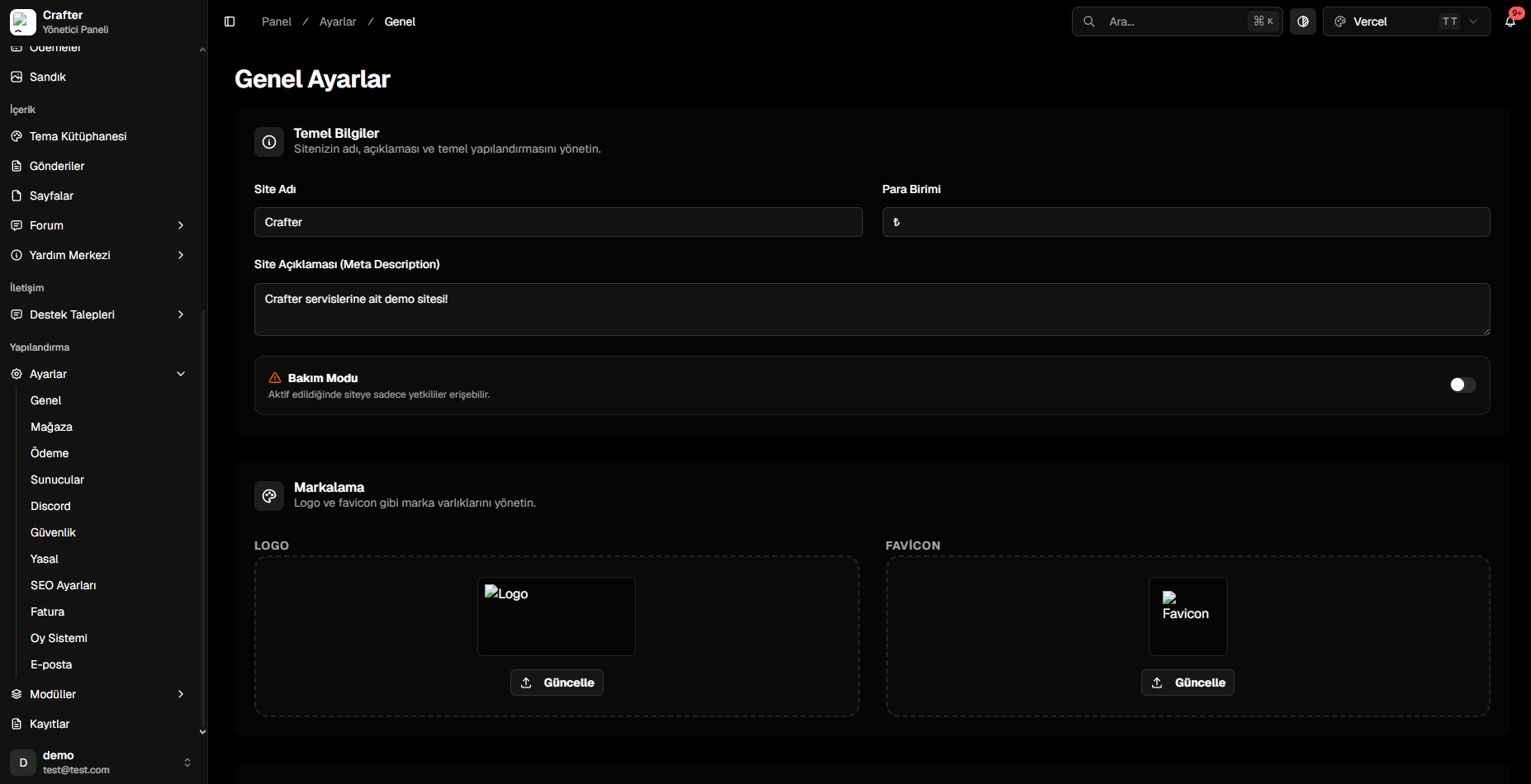
The Crafter General Settings page allows you to configure your web platform's site name, global meta description, primary currency, maintenance mode, and branding assets.
Navigate to [Dashboard > Settings > General](https://app.crafter.net.tr/tr/dashboard/settings/general) to modify global preferences.
 ***
## 1. Core Identity & Currency
* **Site Name:** Title displayed on browser tabs, search engine results, and email receipts (e.g., `Crafter Network`).
* **Currency Symbol:** Primary monetary symbol used throughout the store, cart, and top-up modules (e.g., `$`, `€`, `₺`).
* **Site Description (Meta Description):** Brief tagline summary for search engines and social card previews.
***
## 2. Maintenance Mode
Use Maintenance Mode when upgrading themes, editing servers, or performing backend migrations:
**Maintenance Mode Behavior:** Regular visitors will encounter a branded Maintenance page. Administrators and staff with dashboard permissions retain full access to test and preview the website.
* **Maintenance Mode (Toggle):** Flip the switch on to lock down the frontend, or toggle off to restore public access instantly.
***
## 3. Brand Assets (Logo & Favicon)
Click **Update** on the **LOGO** card to select your primary brand logo shown in theme headers and notification emails.
Click **Update** on the **FAVICON** card to upload a square icon (`.png` or `.ico`) for browser tabs and mobile bookmarks.
***
## 1. Core Identity & Currency
* **Site Name:** Title displayed on browser tabs, search engine results, and email receipts (e.g., `Crafter Network`).
* **Currency Symbol:** Primary monetary symbol used throughout the store, cart, and top-up modules (e.g., `$`, `€`, `₺`).
* **Site Description (Meta Description):** Brief tagline summary for search engines and social card previews.
***
## 2. Maintenance Mode
Use Maintenance Mode when upgrading themes, editing servers, or performing backend migrations:
**Maintenance Mode Behavior:** Regular visitors will encounter a branded Maintenance page. Administrators and staff with dashboard permissions retain full access to test and preview the website.
* **Maintenance Mode (Toggle):** Flip the switch on to lock down the frontend, or toggle off to restore public access instantly.
***
## 3. Brand Assets (Logo & Favicon)
Click **Update** on the **LOGO** card to select your primary brand logo shown in theme headers and notification emails.
Click **Update** on the **FAVICON** card to upload a square icon (`.png` or `.ico`) for browser tabs and mobile bookmarks.
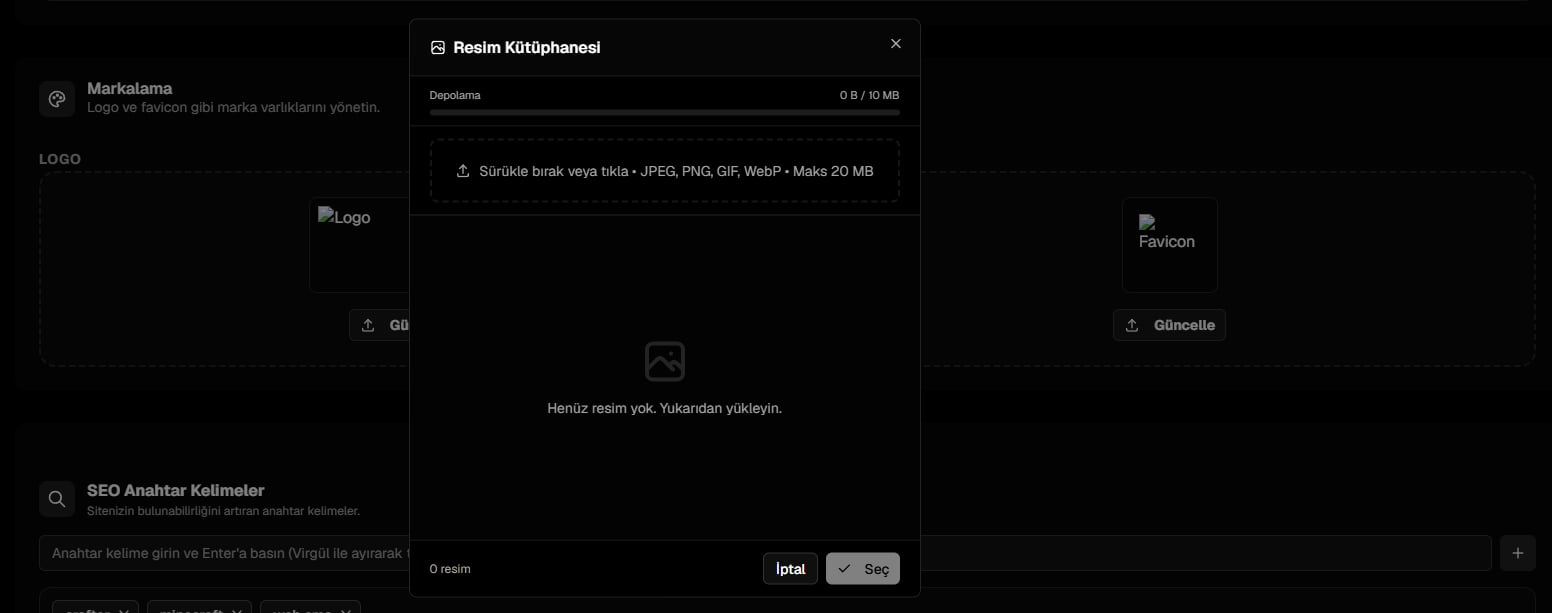 For optimal fidelity, use transparent `.png` or `.svg` files for your logo, and square 32x32px or 64x64px images for your favicon.