> ## Documentation Index
> Fetch the complete documentation index at: https://docs.crafter.net.tr/llms.txt
> Use this file to discover all available pages before exploring further.
# E-Invoicing Settings
> Configure automated tax and e-invoicing integrations for store sales.
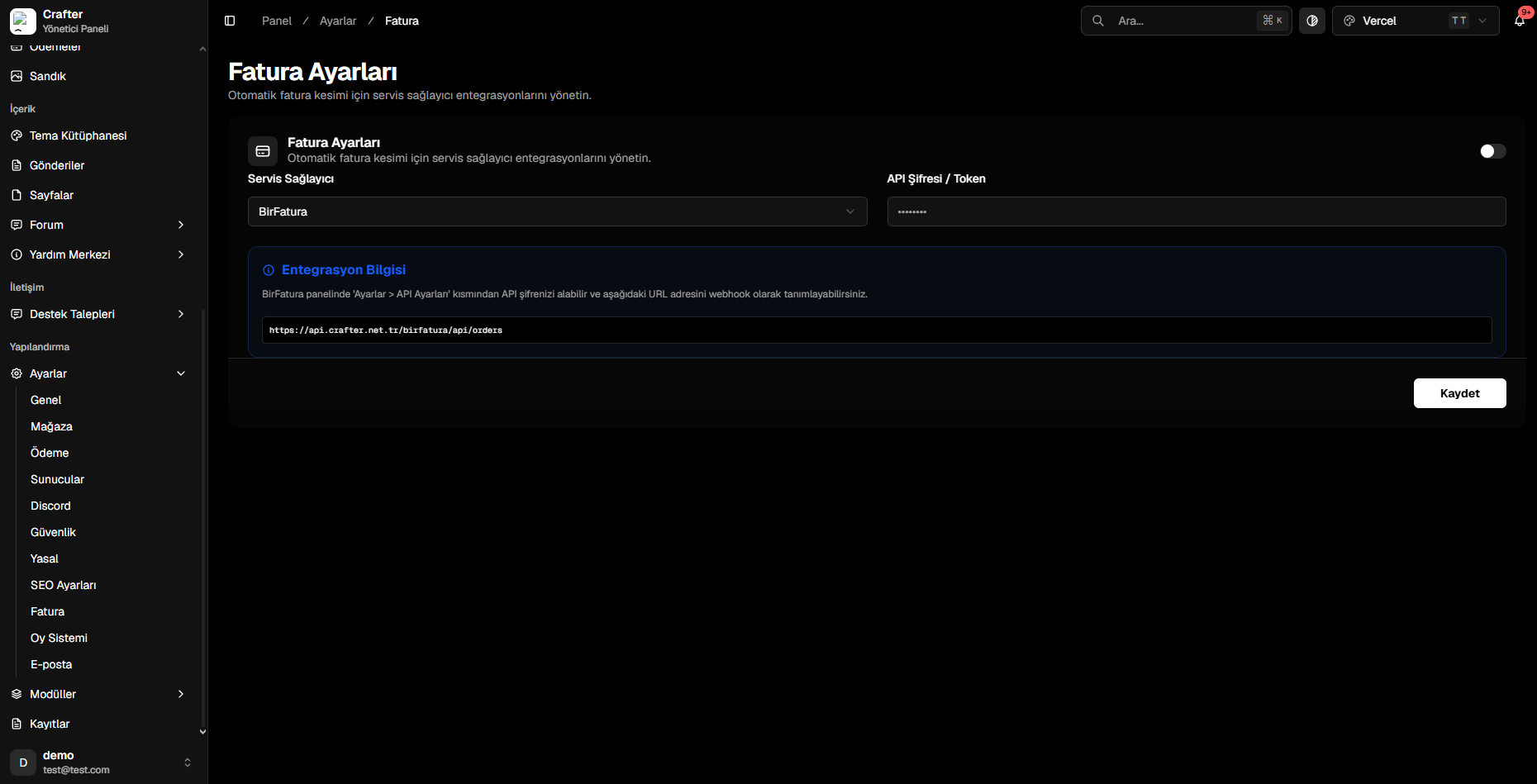
The Crafter Invoice module enables automated e-invoice and legal e-archive generation for all store transactions and credit top-ups through service integrations like BirFatura.
Navigate to [Dashboard > Settings > Invoice](https://app.crafter.net.tr/tr/dashboard/settings/invoice) to link your invoicing account.
 ***
## Setup & Configuration
Toggle on the invoice service switch in the top right corner.
Choose `BirFatura` from the provider dropdown.
Copy your secret API Token from your BirFatura dashboard and paste it into the **API Password / Token** field.
Add the Crafter dispatch webhook URL to your provider panel:
```text theme={null}
https://api.crafter.net.tr/birfatura/api/orders
```
Click **Save** to activate automatic billing.
***
## Setup & Configuration
Toggle on the invoice service switch in the top right corner.
Choose `BirFatura` from the provider dropdown.
Copy your secret API Token from your BirFatura dashboard and paste it into the **API Password / Token** field.
Add the Crafter dispatch webhook URL to your provider panel:
```text theme={null}
https://api.crafter.net.tr/birfatura/api/orders
```
Click **Save** to activate automatic billing.