> ## Documentation Index
> Fetch the complete documentation index at: https://docs.crafter.net.tr/llms.txt
> Use this file to discover all available pages before exploring further.
# Custom Pages & Templates
> Create static content pages, write HTML/Liquid body markup, and leverage Theme Template Suffixes.
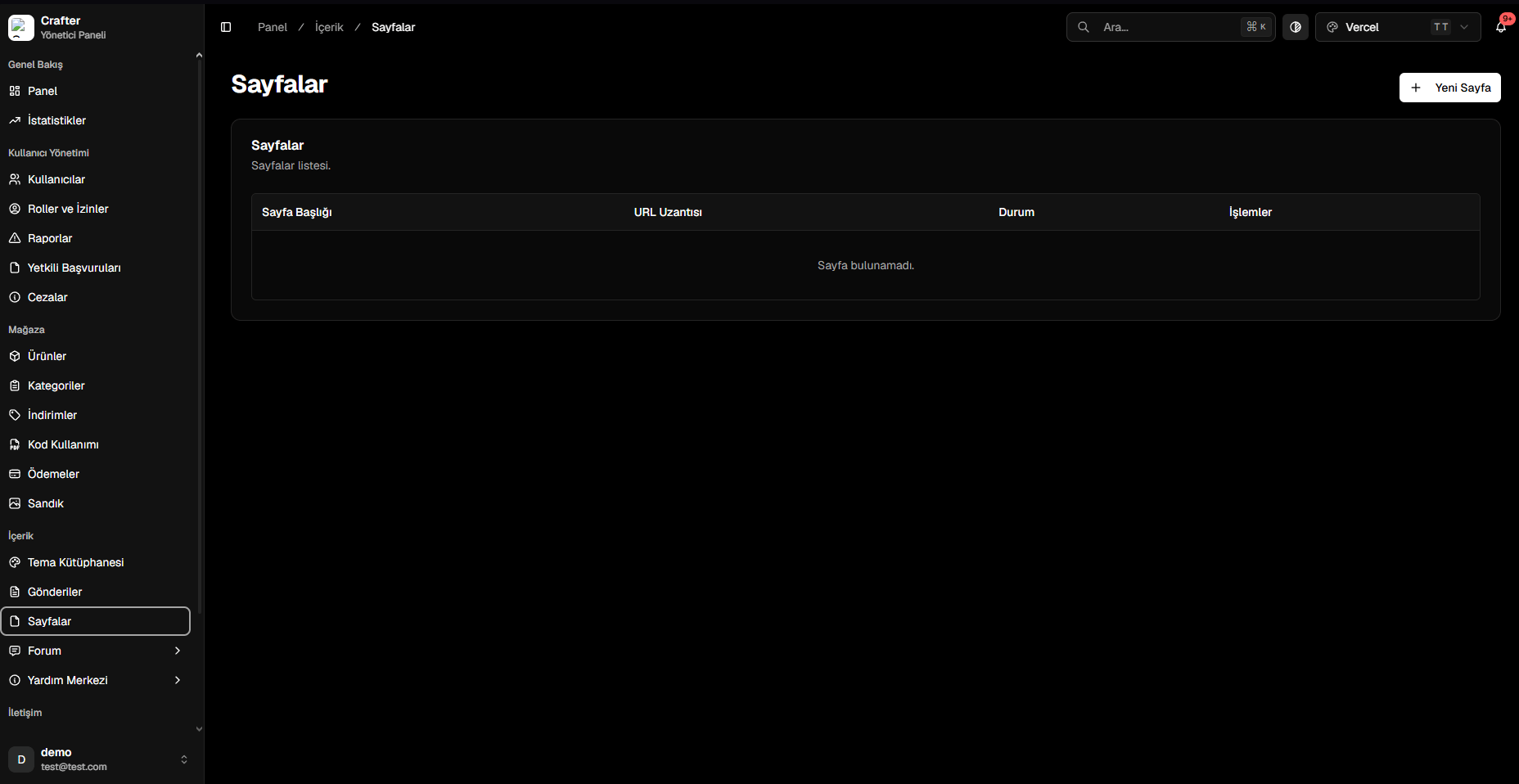
The Crafter Custom Pages module allows you to build informative static pages such as Server Rules, About Us, Terms of Service, or Lore Guides.
Navigate to [Dashboard > Content > Pages](https://app.crafter.net.tr/tr/dashboard/content/pages) to manage existing pages or build new ones.
 ***
## Creating a Custom Page
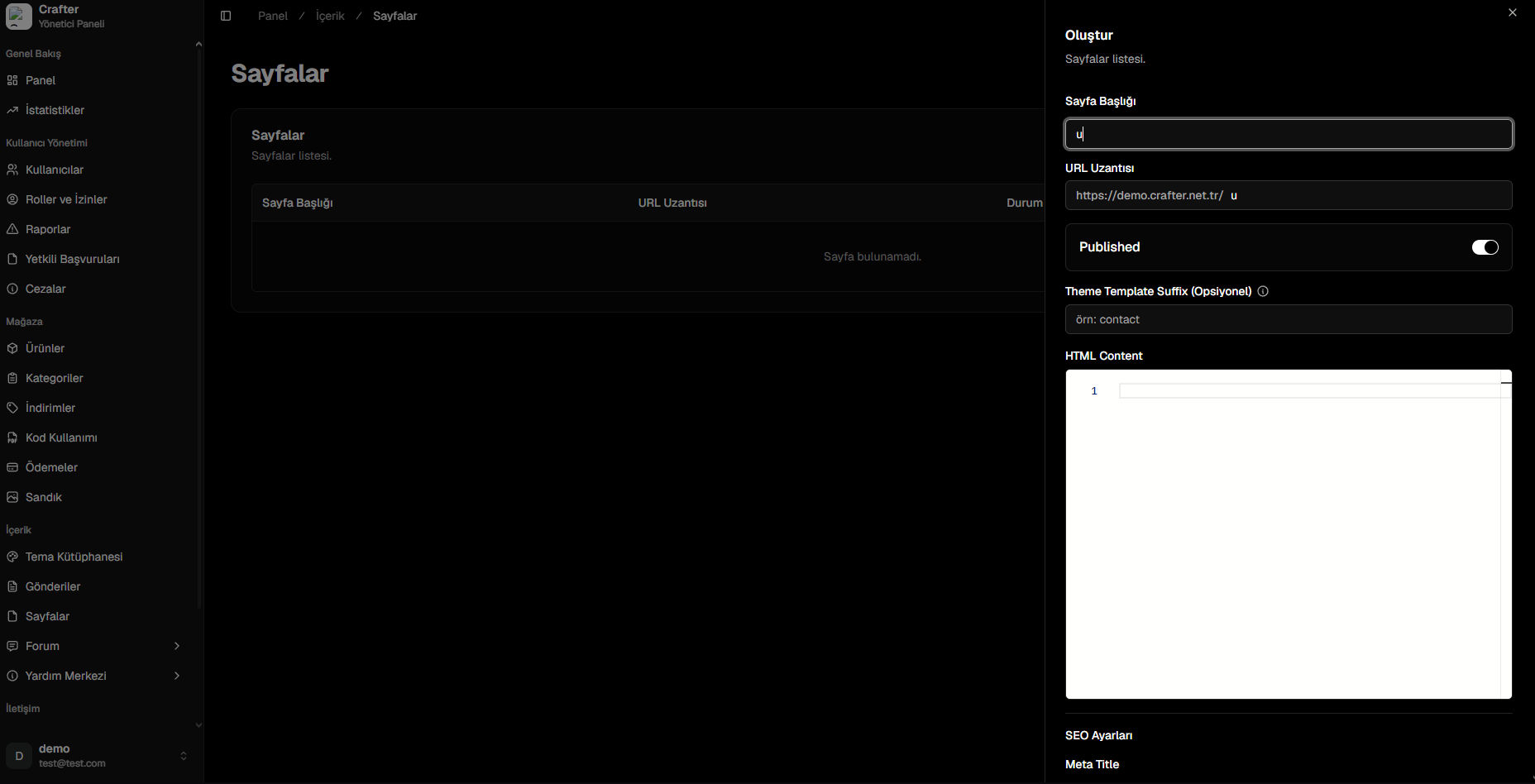
Click **+ New Page** in the top right corner of the Pages screen.
* **Page Title:** Display name (e.g., *Server Rules*, *Staff Team*).
* **Slug:** URL path (e.g., `yourdomain.com/rules`).
* **Published:** Visibility toggle.
Assign a custom layout template suffix to override the standard page container.
Insert custom HTML, CSS styling, or markdown into the editor.
Configure Meta Title and Meta Description, then click **Create**.
***
## Creating a Custom Page
Click **+ New Page** in the top right corner of the Pages screen.
* **Page Title:** Display name (e.g., *Server Rules*, *Staff Team*).
* **Slug:** URL path (e.g., `yourdomain.com/rules`).
* **Published:** Visibility toggle.
Assign a custom layout template suffix to override the standard page container.
Insert custom HTML, CSS styling, or markdown into the editor.
Configure Meta Title and Meta Description, then click **Create**.
 ***
## Understanding Theme Template Suffixes
By default, pages render using your active theme's `templates/page.liquid` template. To render a custom bespoke design for specific pages, use **Theme Template Suffixes**:
* If left **empty**, Crafter compiles `templates/page.liquid`.
* If you enter `contact`, the system compiles `templates/page.contact.liquid`.
* If you enter `rules`, the system compiles `templates/page.rules.liquid`.
***
## Understanding Theme Template Suffixes
By default, pages render using your active theme's `templates/page.liquid` template. To render a custom bespoke design for specific pages, use **Theme Template Suffixes**:
* If left **empty**, Crafter compiles `templates/page.liquid`.
* If you enter `contact`, the system compiles `templates/page.contact.liquid`.
* If you enter `rules`, the system compiles `templates/page.rules.liquid`.