> ## Documentation Index
> Fetch the complete documentation index at: https://docs.crafter.net.tr/llms.txt
> Use this file to discover all available pages before exploring further.
# Categories
> Organize products into categories, configure display styles, slug routing, and banner images.
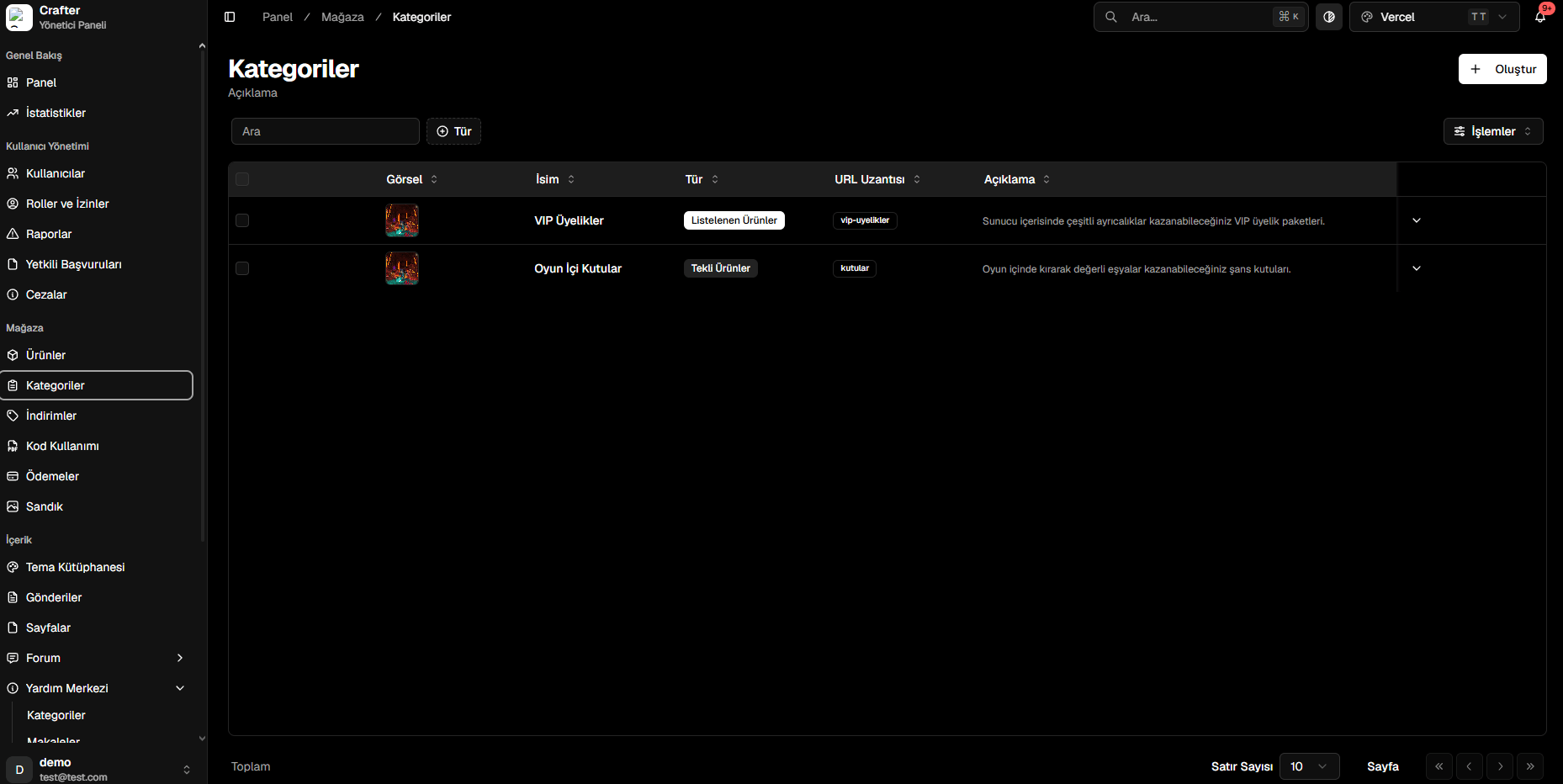
Crafter Store Categories allow you to organize your web store into logical departments such as VIP memberships, crate keys, currencies, or server-specific bundles.
Navigate to [Dashboard > Store > Categories](https://app.crafter.net.tr/tr/dashboard/store/categories) to manage existing categories or add new ones.
 ***
## Creating a Category
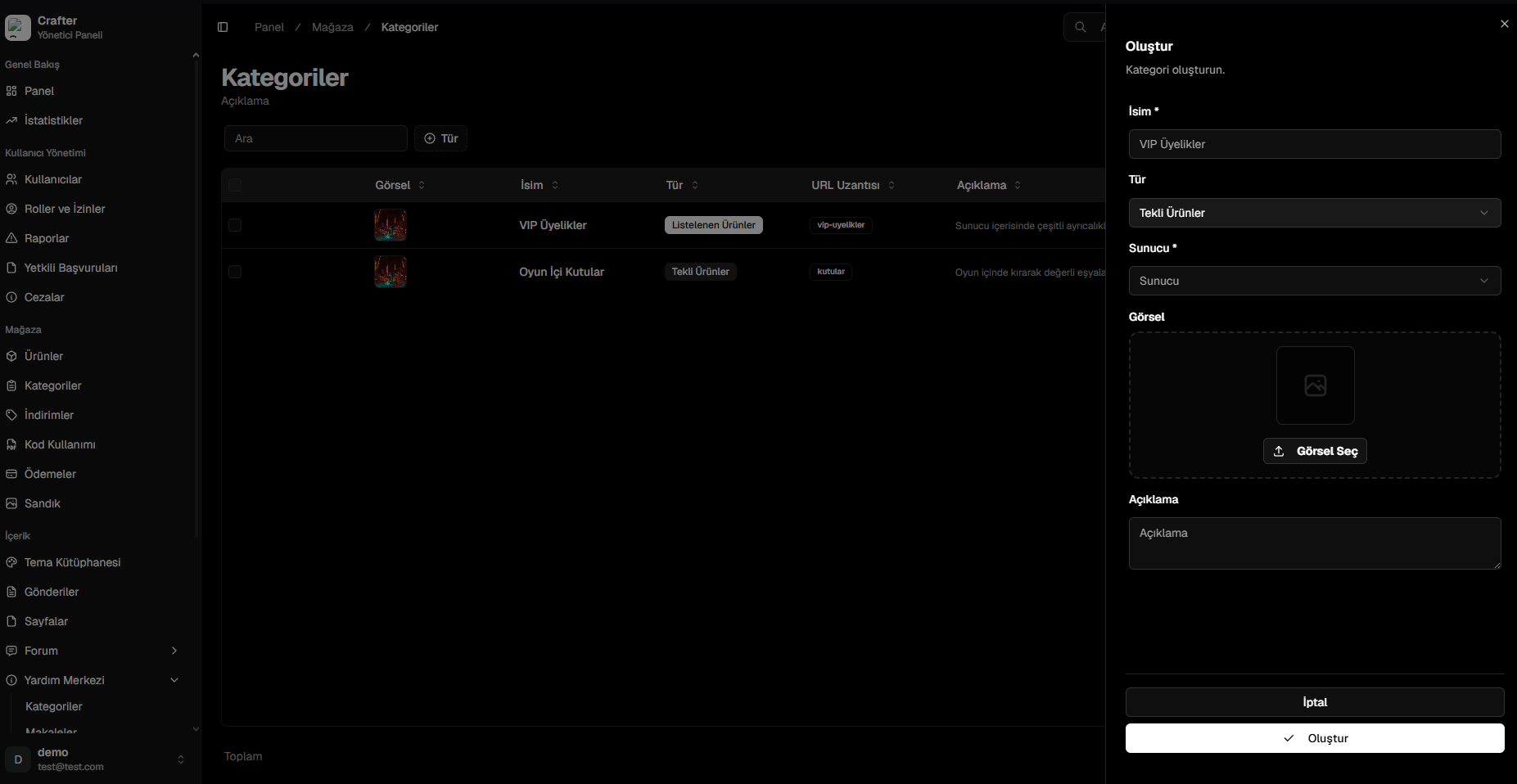
Click the **+ Create** button in the top right corner of the Categories page.
* **Name:** Title displayed in the store navigation (e.g., `VIP Ranks`, `In-Game Crates`).
* **Type:**
* **Listed Products:** Traditional catalog grid displaying multiple products.
* **Single Product Showcase:** Featured showcase highlight focusing on dedicated packages.
* **Server:** Target server where items in this category apply.
Choose a banner/icon from the Crafter Media Library or upload a custom image.
Add a brief summary describing what perks players receive, then click **Create**.
***
## Creating a Category
Click the **+ Create** button in the top right corner of the Categories page.
* **Name:** Title displayed in the store navigation (e.g., `VIP Ranks`, `In-Game Crates`).
* **Type:**
* **Listed Products:** Traditional catalog grid displaying multiple products.
* **Single Product Showcase:** Featured showcase highlight focusing on dedicated packages.
* **Server:** Target server where items in this category apply.
Choose a banner/icon from the Crafter Media Library or upload a custom image.
Add a brief summary describing what perks players receive, then click **Create**.
 ***
## URL Slugs & Clean Routing
Each category receives a clean, SEO-optimized URL path:
* **VIP Memberships:** `yourdomain.com/store//vip-ranks`
* **Crates:** `yourdomain.com/store//crates`
After creating categories, visit the [Products](https://app.crafter.net.tr/tr/dashboard/store/products) page to assign items to your newly created categories.
***
## URL Slugs & Clean Routing
Each category receives a clean, SEO-optimized URL path:
* **VIP Memberships:** `yourdomain.com/store//vip-ranks`
* **Crates:** `yourdomain.com/store//crates`
After creating categories, visit the [Products](https://app.crafter.net.tr/tr/dashboard/store/products) page to assign items to your newly created categories.