> ## Documentation Index
> Fetch the complete documentation index at: https://docs.crafter.net.tr/llms.txt
> Use this file to discover all available pages before exploring further.
# Web Chests
> Inspect player virtual inventories, manually gift or revoke items, and trigger in-game deliveries.
The Crafter Web Chest system serves as a virtual player inventory holding purchased items, wheel spin rewards, and staff-granted gifts before players transfer them into an active game server.
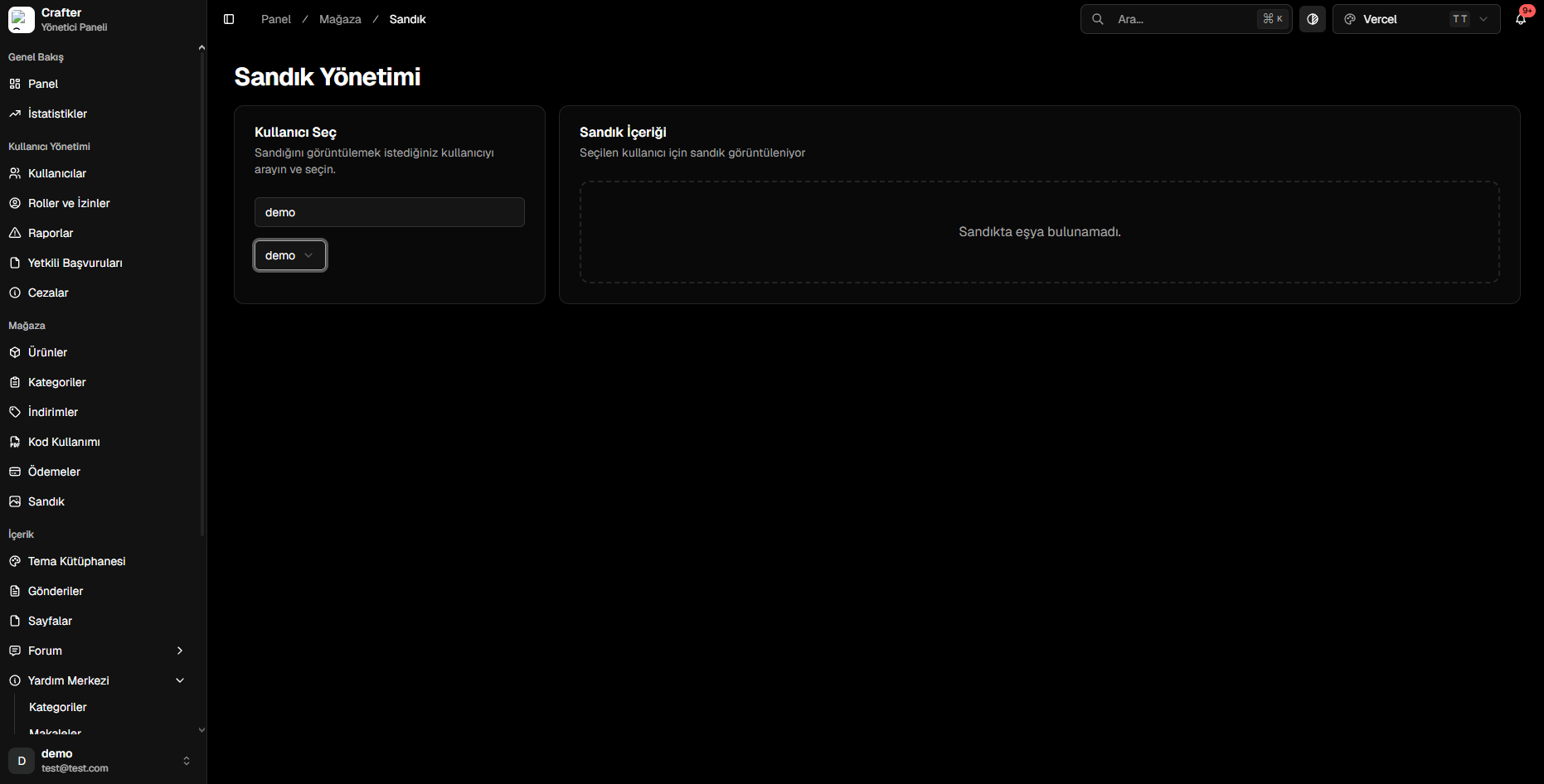
Navigate to [Dashboard > Store > Chest](https://app.crafter.net.tr/tr/dashboard/store/chest) to manage individual player chest inventories.
 ***
## Inspecting a Player's Web Chest
Type the target player's username into the **Select User** search box on the left.
Choose the account from results to load their active chest items in the right-hand panel.
***
## Administrative Actions
From the chest panel, administrators can:
* **Add Item:** Manually grant a store package, crate key, or special voucher into the player's chest.
* **Revoke Item:** Remove refunded or erroneously granted items.
* **Trigger In-Game Delivery:** Instantly dispatch console delivery commands to an active server on behalf of the player.
Players can log in to your website and access `yourdomain.com/chest` to claim their items into their current server at any time with a single click.
***
## Inspecting a Player's Web Chest
Type the target player's username into the **Select User** search box on the left.
Choose the account from results to load their active chest items in the right-hand panel.
***
## Administrative Actions
From the chest panel, administrators can:
* **Add Item:** Manually grant a store package, crate key, or special voucher into the player's chest.
* **Revoke Item:** Remove refunded or erroneously granted items.
* **Trigger In-Game Delivery:** Instantly dispatch console delivery commands to an active server on behalf of the player.
Players can log in to your website and access `yourdomain.com/chest` to claim their items into their current server at any time with a single click.