> ## Documentation Index
> Fetch the complete documentation index at: https://docs.crafter.net.tr/llms.txt
> Use this file to discover all available pages before exploring further.
# Products
> Create store products, command delivery placeholders, stock management, and asset uploads.
The Crafter Store system enables you to sell VIP ranks, in-game currency, loot crates, and cosmetics with zero-latency automated command delivery to your game servers.
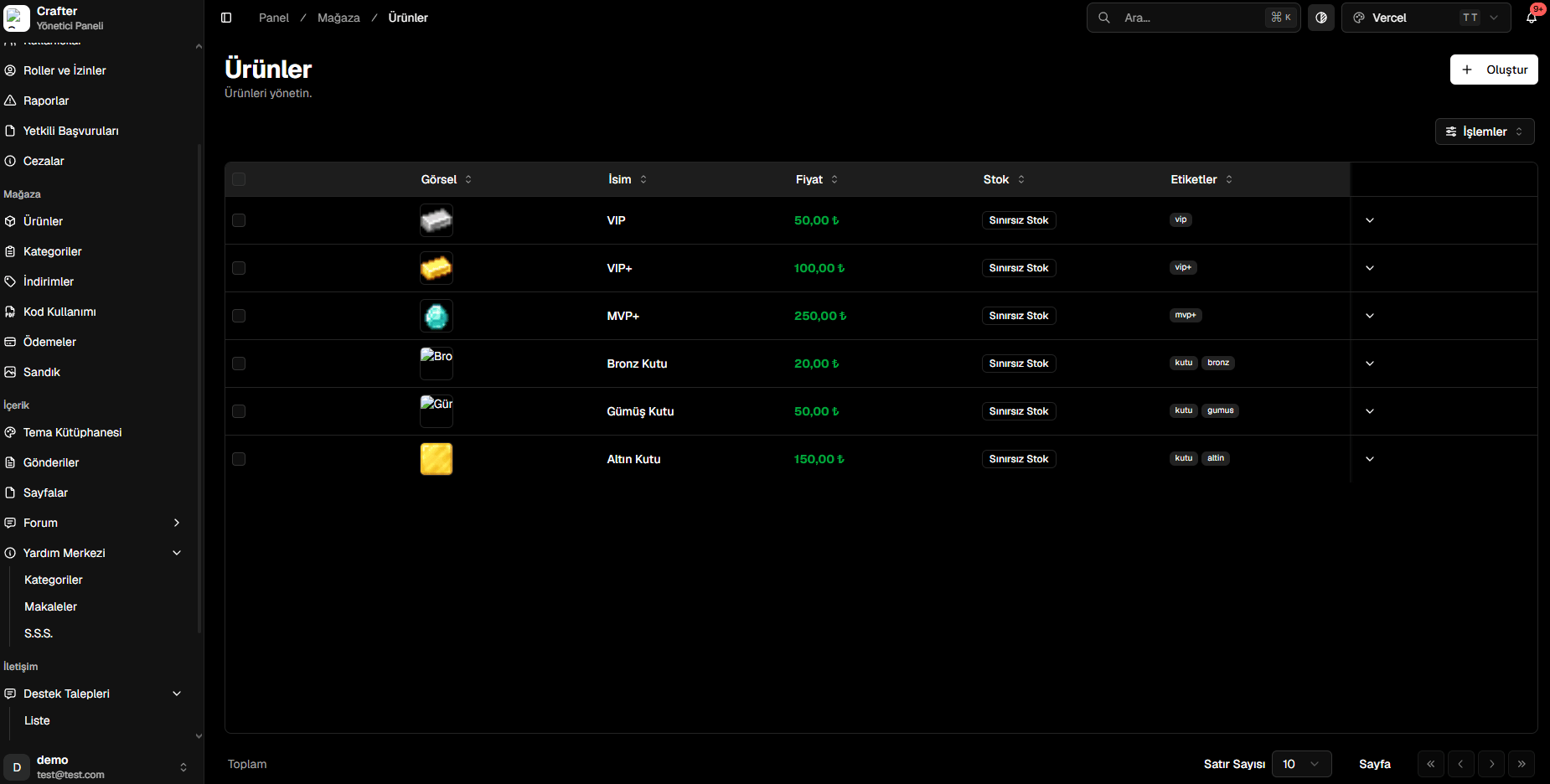
Navigate to [Dashboard > Store > Products](https://app.crafter.net.tr/tr/dashboard/store/products) to list, edit, or create new store items.
 ***
## Creating a New Product
Follow these steps to publish a new product with automated in-game fulfillment:
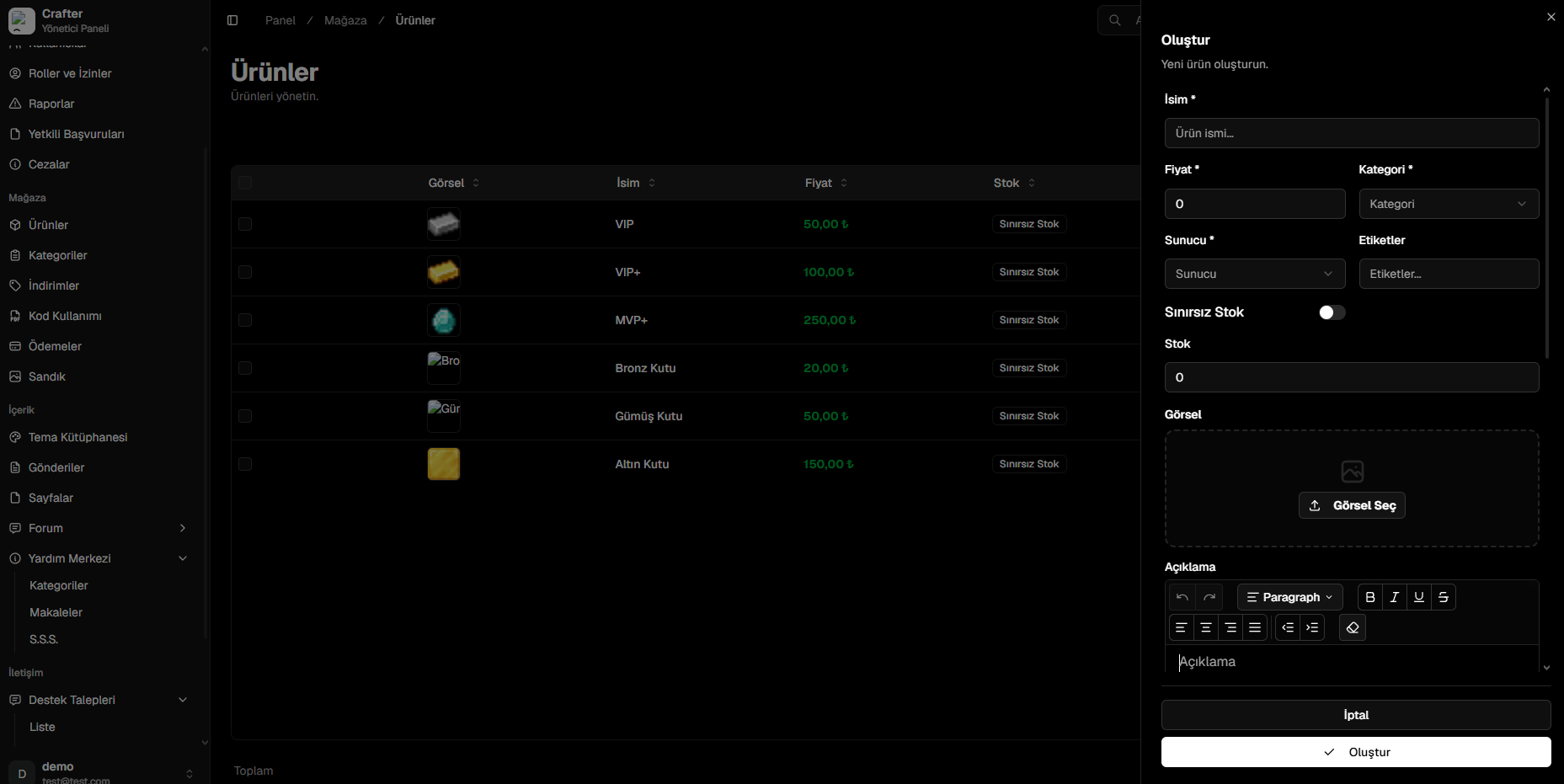
Click the **+ Create** button in the top right corner of the Products page.
* **Name:** Product title displayed on the web store (e.g., `VIP+`, `Diamond Key Bundle`).
* **Price:** Sale price in Credits or real currency.
* **Category:** Store category (e.g., Memberships, Crates).
* **Server:** Target game server where execution commands should be sent.
* **Tags:** Filter tags (e.g., `vip`, `bundle`).
* **Stock:** Enable unlimited stock or set a fixed quantity limit.
Choose from the built-in Crafter Media Library or upload a custom image.
Use the rich text editor to highlight product benefits and terms of use.
Enter the console commands that should automatically execute upon purchase.
**Command Syntax:** Do **not** prefix commands with a slash (`/`). Commands execute directly through the server console (e.g., `lp user %username% parent add vip`).
***
## Creating a New Product
Follow these steps to publish a new product with automated in-game fulfillment:
Click the **+ Create** button in the top right corner of the Products page.
* **Name:** Product title displayed on the web store (e.g., `VIP+`, `Diamond Key Bundle`).
* **Price:** Sale price in Credits or real currency.
* **Category:** Store category (e.g., Memberships, Crates).
* **Server:** Target game server where execution commands should be sent.
* **Tags:** Filter tags (e.g., `vip`, `bundle`).
* **Stock:** Enable unlimited stock or set a fixed quantity limit.
Choose from the built-in Crafter Media Library or upload a custom image.
Use the rich text editor to highlight product benefits and terms of use.
Enter the console commands that should automatically execute upon purchase.
**Command Syntax:** Do **not** prefix commands with a slash (`/`). Commands execute directly through the server console (e.g., `lp user %username% parent add vip`).
 ***
## Supported Command Placeholders
Use dynamic placeholders to insert the purchaser's data into delivery commands:
| Placeholder | Description | Example Usage |
| :----------- | :-------------------------------- | :---------------------------------- |
| `%username%` | Purchaser's username | `lp user %username% parent add vip` |
| `%uuid%` | Purchaser's unique Minecraft UUID | `crate give key %uuid% gold 1` |
| `%ip%` | Purchaser's client IP address | `security log %username% %ip%` |
***
## Example Fulfillment Scenarios
```text theme={null}
lp user %username% parent addtemp vip 30d
broadcast &a%username% &fjust purchased &630-Day VIP &ffrom the web store!
```
```text theme={null}
crate givekey %username% epic 3
eco give %username% 50000
```
***
## Supported Command Placeholders
Use dynamic placeholders to insert the purchaser's data into delivery commands:
| Placeholder | Description | Example Usage |
| :----------- | :-------------------------------- | :---------------------------------- |
| `%username%` | Purchaser's username | `lp user %username% parent add vip` |
| `%uuid%` | Purchaser's unique Minecraft UUID | `crate give key %uuid% gold 1` |
| `%ip%` | Purchaser's client IP address | `security log %username% %ip%` |
***
## Example Fulfillment Scenarios
```text theme={null}
lp user %username% parent addtemp vip 30d
broadcast &a%username% &fjust purchased &630-Day VIP &ffrom the web store!
```
```text theme={null}
crate givekey %username% epic 3
eco give %username% 50000
```