> ## Documentation Index
> Fetch the complete documentation index at: https://docs.crafter.net.tr/llms.txt
> Use this file to discover all available pages before exploring further.
# Staff Applications
> Build dynamic recruitment forms, configure custom field types, and review candidate submissions.
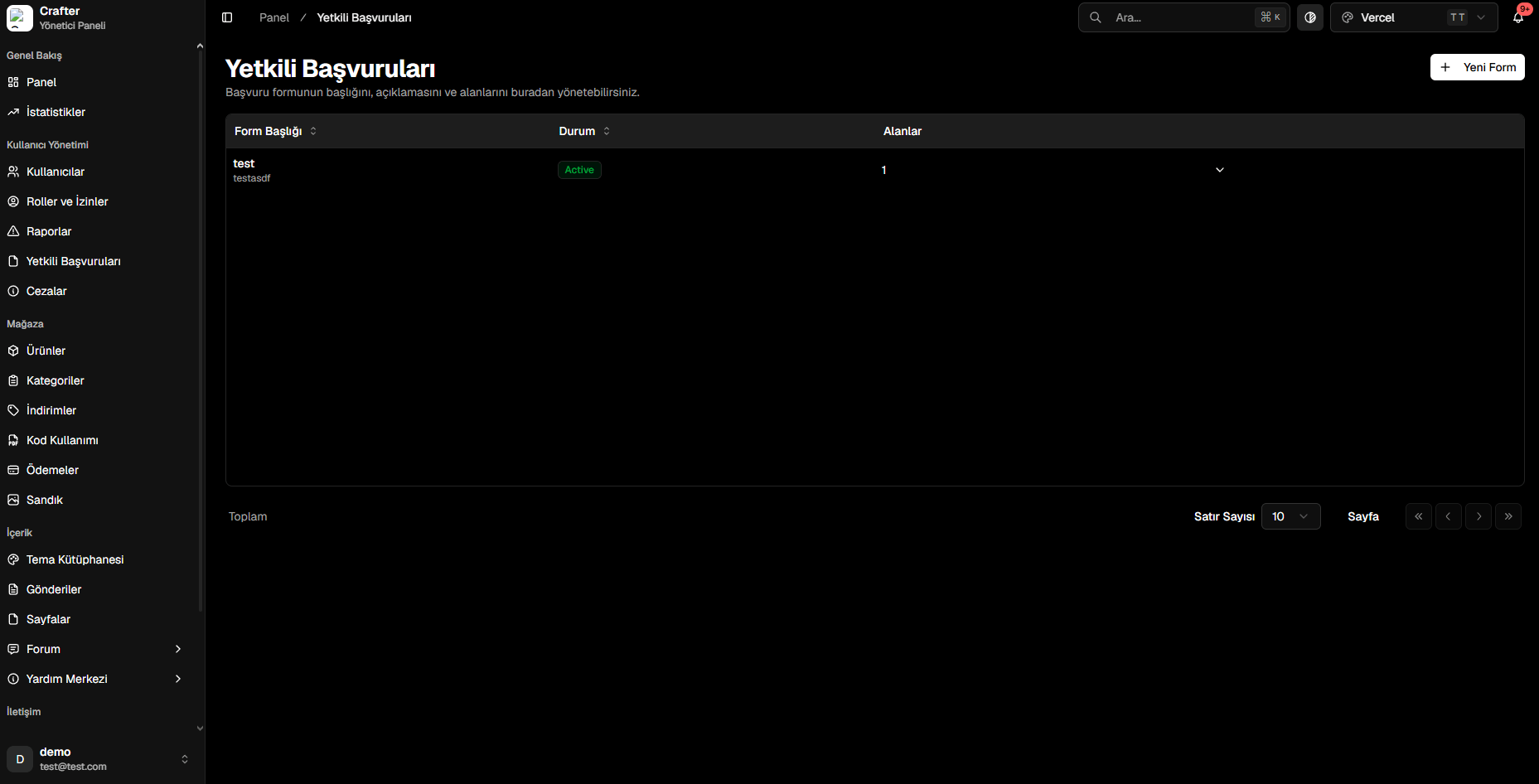
The Crafter Staff Applications module enables you to recruit Helpers, Builders, Moderators, or Developers through custom interactive questionnaires on your website.
* **Dashboard:** [Dashboard > Staff Applications](https://app.crafter.net.tr/tr/dashboard/applications)
* **Public Application URL:** `yourdomain.com/applications/form`
 ***
## Creating a Dynamic Application Form
Design custom questionnaires tailored to specific staff positions:
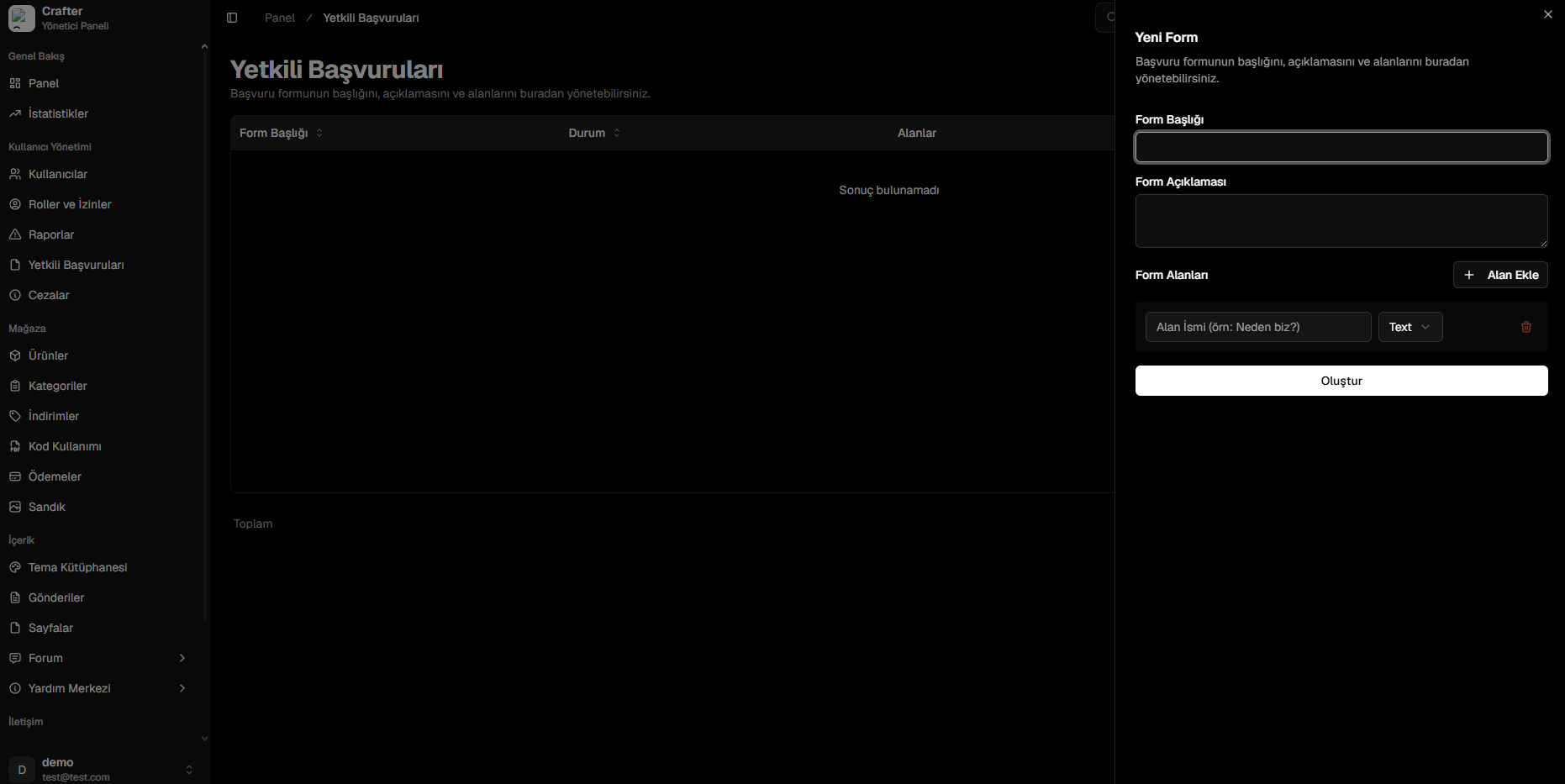
Navigate to [Dashboard > Staff Applications](https://app.crafter.net.tr/tr/dashboard/applications) and click **New Form** in the top-right corner.
* **Form Title:** Display name on the website (e.g., Helper Recruitment, Moderator Application).
* **Description:** Requirements, age guidelines, or rules for applicants.
Click **+ Add Field** to insert questions. Choose custom labels, placeholders, and data types.
Click **Create** to make the form publicly available on your website.
***
## Creating a Dynamic Application Form
Design custom questionnaires tailored to specific staff positions:
Navigate to [Dashboard > Staff Applications](https://app.crafter.net.tr/tr/dashboard/applications) and click **New Form** in the top-right corner.
* **Form Title:** Display name on the website (e.g., Helper Recruitment, Moderator Application).
* **Description:** Requirements, age guidelines, or rules for applicants.
Click **+ Add Field** to insert questions. Choose custom labels, placeholders, and data types.
Click **Create** to make the form publicly available on your website.
 ***
## Supported Field Types
* **Text:** Short or multi-line paragraph answers (e.g., "Why do you want to join our team?").
* **Number:** Numeric input (e.g., Age, daily active hours).
* **Email:** Validated email format.
* **Phone:** Phone number input.
* **Date/Time:** Date picker for birthdays or availability.
* **Checkbox:** Confirmation toggles (e.g., "I have read and agree to staff rules").
* **Select:** Dropdown menu for single-choice answers (e.g., Preferred Realm / Gamemode).
***
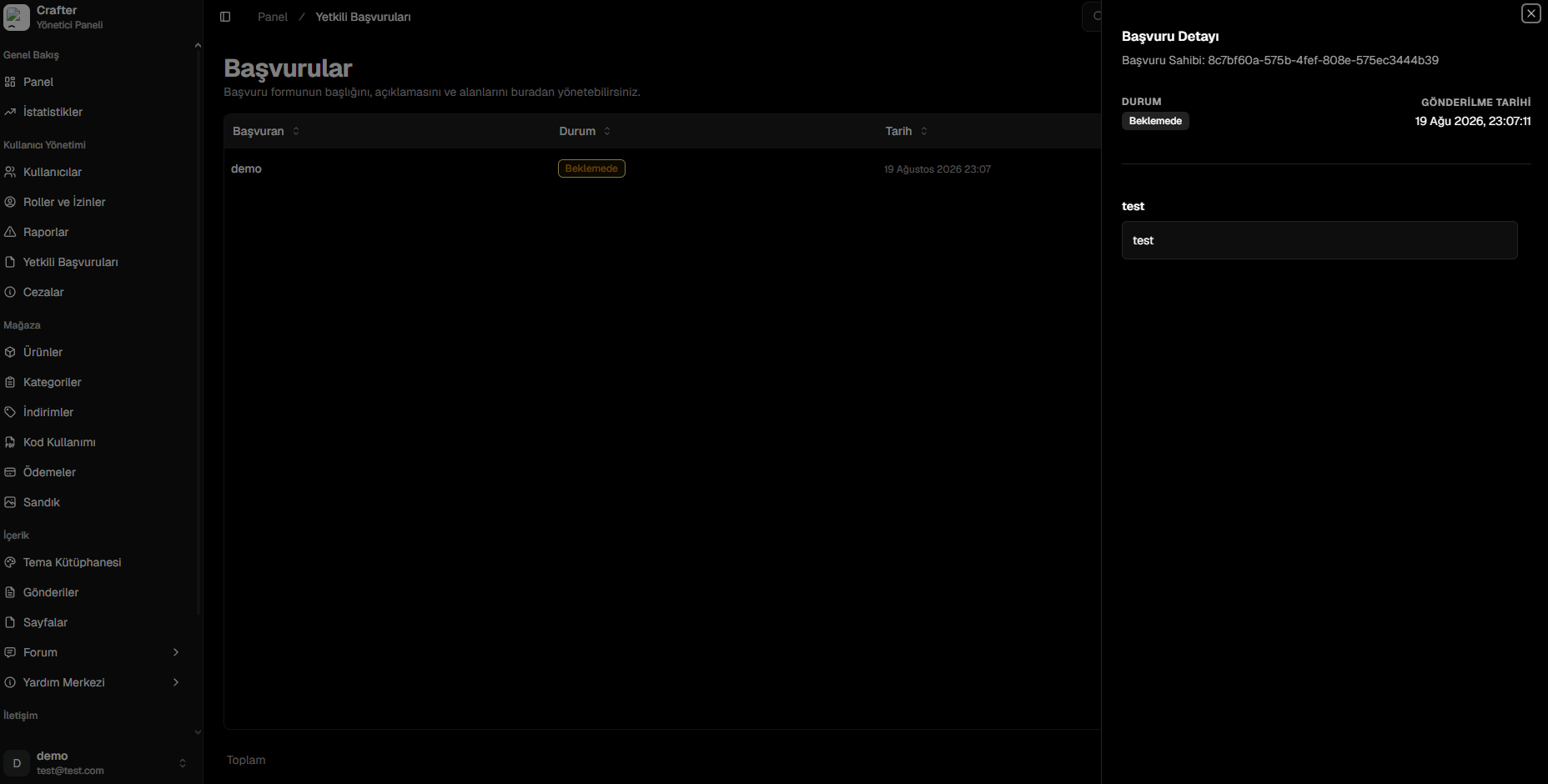
## Reviewing Submissions
When applicants submit forms at `yourdomain.com/applications/form`, entries are instantly available in your dashboard.
Filter incoming applications by form title or candidate status.
Open the candidate dossier to inspect submitted answers and account history.
Mark the application as **Approved**, **Rejected**, or **Under Review**.
***
## Supported Field Types
* **Text:** Short or multi-line paragraph answers (e.g., "Why do you want to join our team?").
* **Number:** Numeric input (e.g., Age, daily active hours).
* **Email:** Validated email format.
* **Phone:** Phone number input.
* **Date/Time:** Date picker for birthdays or availability.
* **Checkbox:** Confirmation toggles (e.g., "I have read and agree to staff rules").
* **Select:** Dropdown menu for single-choice answers (e.g., Preferred Realm / Gamemode).
***
## Reviewing Submissions
When applicants submit forms at `yourdomain.com/applications/form`, entries are instantly available in your dashboard.
Filter incoming applications by form title or candidate status.
Open the candidate dossier to inspect submitted answers and account history.
Mark the application as **Approved**, **Rejected**, or **Under Review**.