> ## Documentation Index
> Fetch the complete documentation index at: https://docs.crafter.net.tr/llms.txt
> Use this file to discover all available pages before exploring further.
# Roles & Permissions
> Role-Based Access Control (RBAC), custom staff roles, and granular permission matrices.
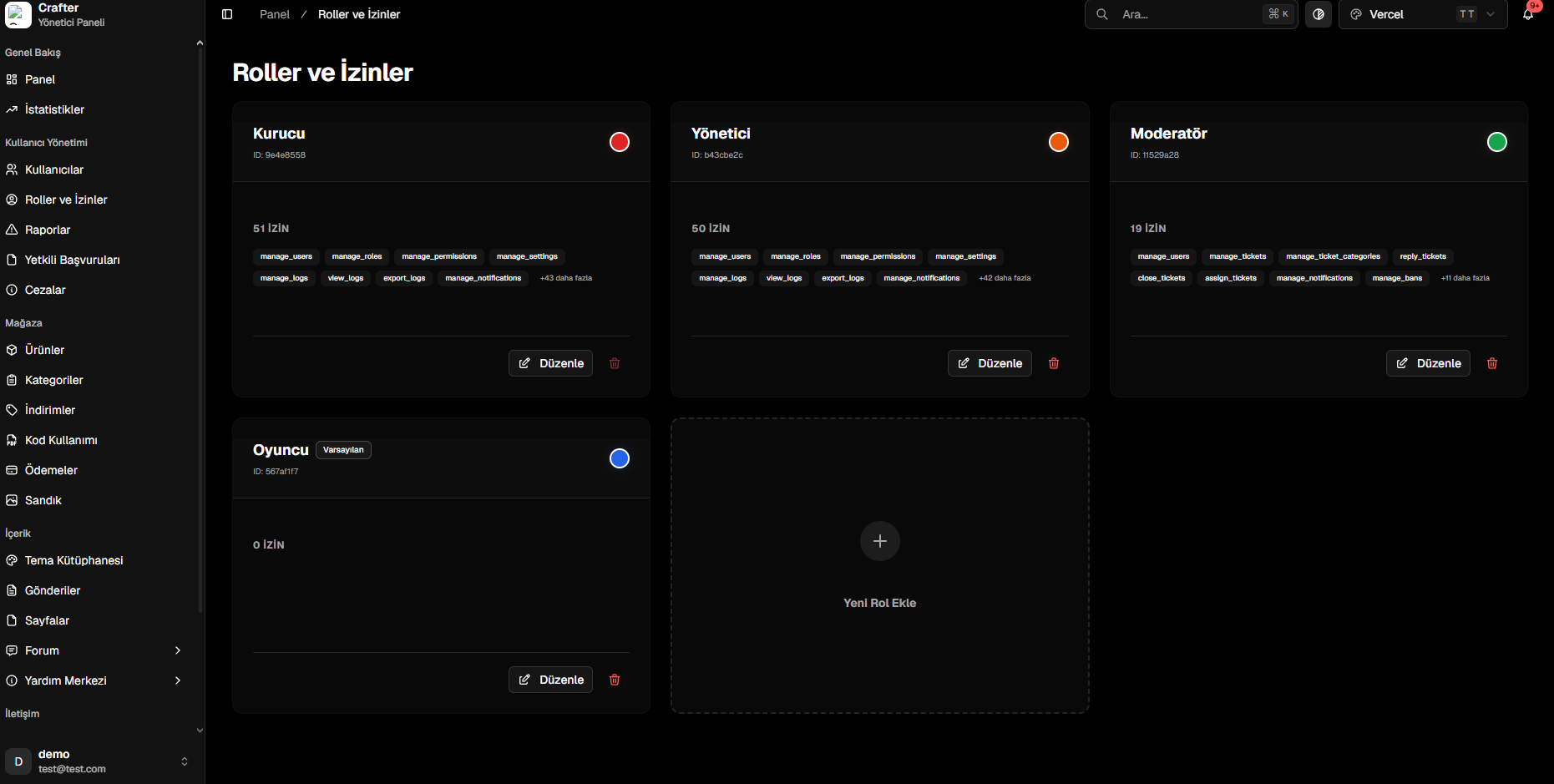
Crafter features a robust **Role-Based Access Control (RBAC)** architecture that allows you to configure exact staff and player permissions across the entire platform.
Navigate to [Dashboard > User Management > Roles & Permissions](https://app.crafter.net.tr/tr/dashboard/roles) to configure roles or create custom permission tiers.
 ***
## System Roles & Protections
To guarantee security and stability, essential core roles are pre-configured:
* **Owner:** Top-level superadmin role. Full access to all modules, settings, and logs. Cannot be deleted.
* **Admin:** High-level operational role for network managers. Cannot be deleted.
* **Moderator:** Handles tickets, player reports, and punishment operations.
* **Player (Default):** Automatically assigned to newly registered users. Grants standard player access without dashboard permissions. Cannot be deleted.
**Protected Roles:** System roles such as `Owner`, `Admin`, and `Player` cannot be deleted to ensure system stability.
***
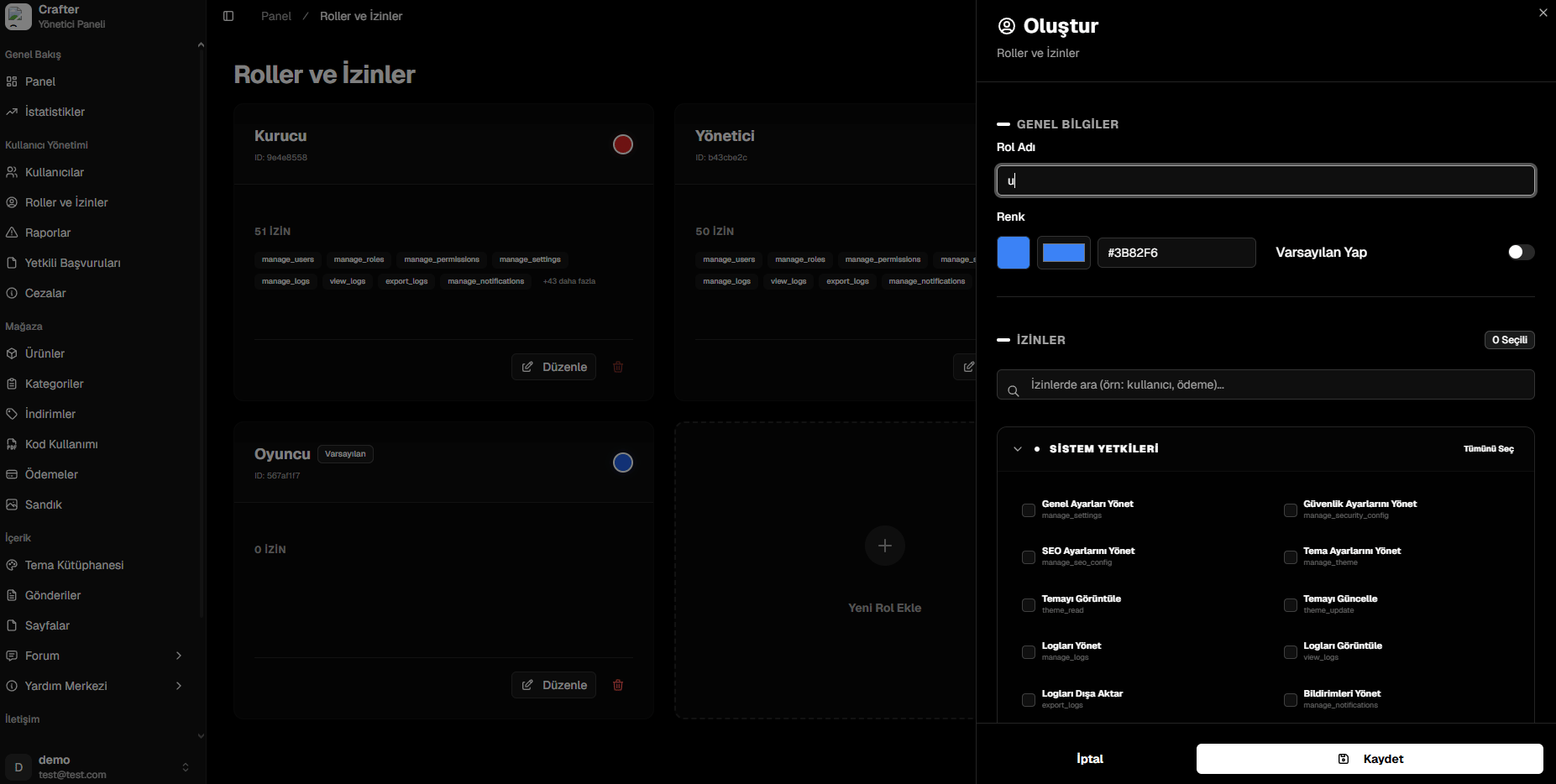
## Creating a Custom Role
Define specialized roles for your staff members (e.g., Helpers, Builders, Support Agents):
Click **Add New Role** on the Roles & Permissions overview page.
Configure the core role properties:
* **Role Name:** Display name (e.g., Support Team, Helper, Trial Mod).
* **Color:** HEX color code for profile badges and dashboard highlights (e.g., `#3B82F6`).
* **Make Default:** Enable if newly registered accounts should automatically receive this role.
Expand permission categories and toggle the exact capabilities you wish to assign, then click **Save**.
***
## System Roles & Protections
To guarantee security and stability, essential core roles are pre-configured:
* **Owner:** Top-level superadmin role. Full access to all modules, settings, and logs. Cannot be deleted.
* **Admin:** High-level operational role for network managers. Cannot be deleted.
* **Moderator:** Handles tickets, player reports, and punishment operations.
* **Player (Default):** Automatically assigned to newly registered users. Grants standard player access without dashboard permissions. Cannot be deleted.
**Protected Roles:** System roles such as `Owner`, `Admin`, and `Player` cannot be deleted to ensure system stability.
***
## Creating a Custom Role
Define specialized roles for your staff members (e.g., Helpers, Builders, Support Agents):
Click **Add New Role** on the Roles & Permissions overview page.
Configure the core role properties:
* **Role Name:** Display name (e.g., Support Team, Helper, Trial Mod).
* **Color:** HEX color code for profile badges and dashboard highlights (e.g., `#3B82F6`).
* **Make Default:** Enable if newly registered accounts should automatically receive this role.
Expand permission categories and toggle the exact capabilities you wish to assign, then click **Save**.
 ***
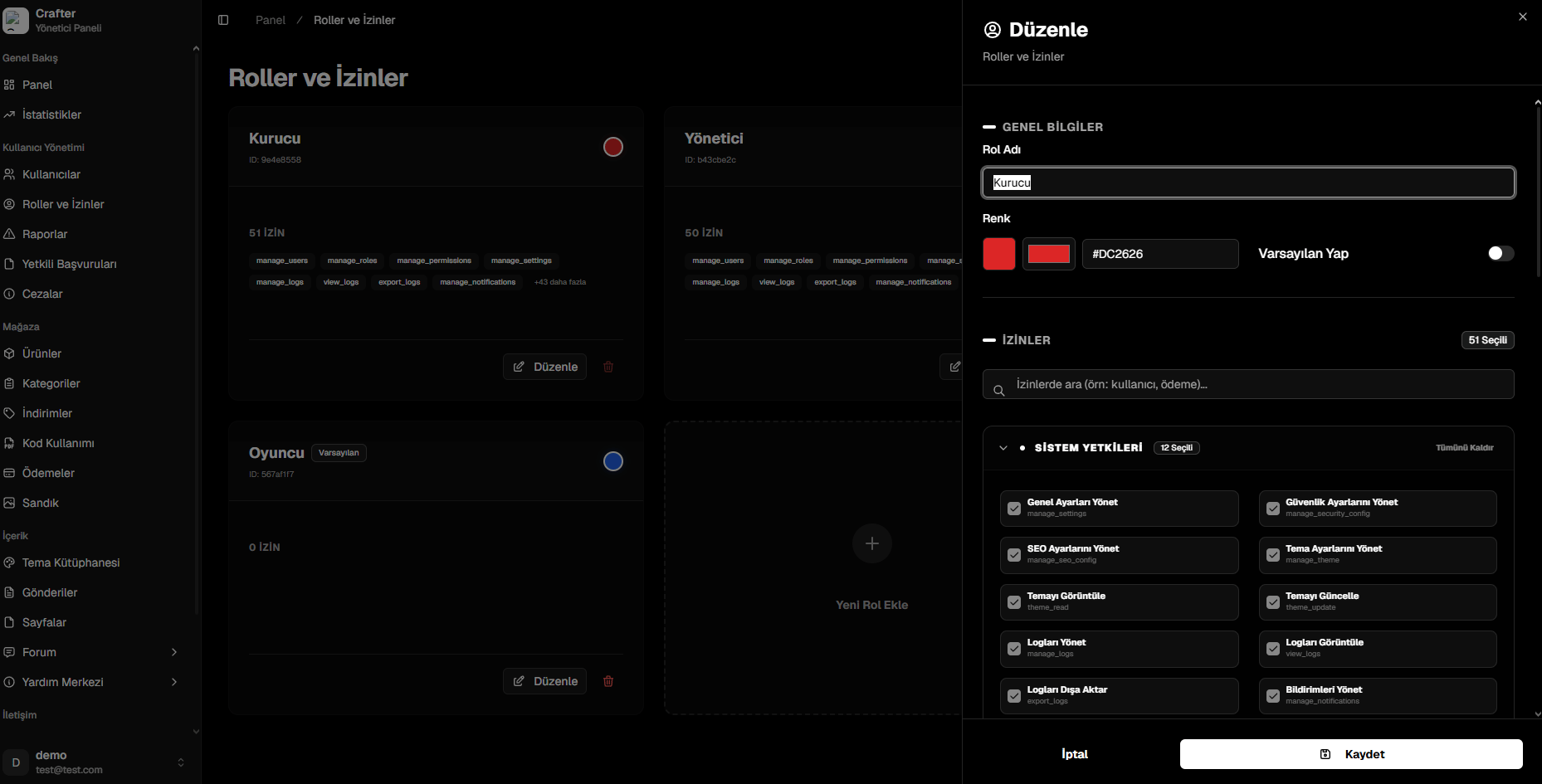
## Role Editing & Permission Matrix
Click **Edit** on any role card to customize permissions or modify badge colors.
***
## Role Editing & Permission Matrix
Click **Edit** on any role card to customize permissions or modify badge colors.
 ### Permission Categories
Permissions are organized by module:
* **System Permissions:** Settings (`manage_settings`), Security (`manage_security_config`), SEO, and Audit Logs (`view_logs`, `export_logs`).
* **User & Moderation:** User account modifications, punishments, and staff applications.
* **Store & Finance:** Product creation, categories, coupon codes, and transaction histories.
* **Content & Themes:** Blog posts, forum management, help center articles, and theme templates.
Use the **Search Permissions** filter at the top of the matrix to quickly locate specific permission nodes (e.g., `payment`, `theme`, `ticket`).
### Permission Categories
Permissions are organized by module:
* **System Permissions:** Settings (`manage_settings`), Security (`manage_security_config`), SEO, and Audit Logs (`view_logs`, `export_logs`).
* **User & Moderation:** User account modifications, punishments, and staff applications.
* **Store & Finance:** Product creation, categories, coupon codes, and transaction histories.
* **Content & Themes:** Blog posts, forum management, help center articles, and theme templates.
Use the **Search Permissions** filter at the top of the matrix to quickly locate specific permission nodes (e.g., `payment`, `theme`, `ticket`).