
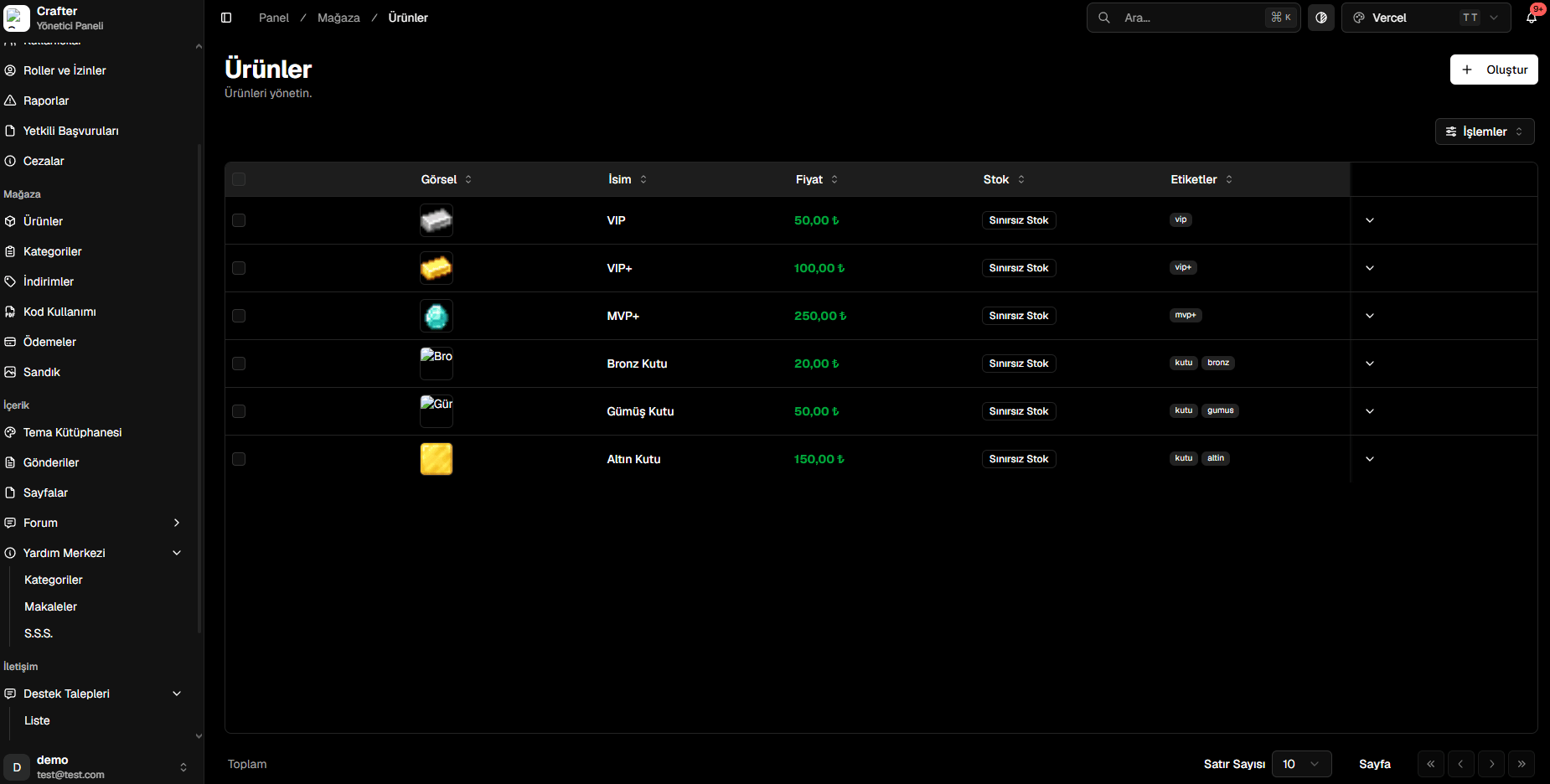
Store Products Management List
Creating a New Product
Follow these steps to publish a new product with automated in-game fulfillment:1
Open Product Creator
Click the + Create button in the top right corner of the Products page.
2
Configure Core Details & Price
- Name: Product title displayed on the web store (e.g.,
VIP+,Diamond Key Bundle). - Price: Sale price in Credits or real currency.
- Category: Store category (e.g., Memberships, Crates).
- Server: Target game server where execution commands should be sent.
- Tags: Filter tags (e.g.,
vip,bundle). - Stock: Enable unlimited stock or set a fixed quantity limit.
3
Select Product Image
Choose from the built-in Crafter Media Library or upload a custom image.
4
Provide Description & Perks
Use the rich text editor to highlight product benefits and terms of use.
5
Define Fulfillment Commands
Enter the console commands that should automatically execute upon purchase.
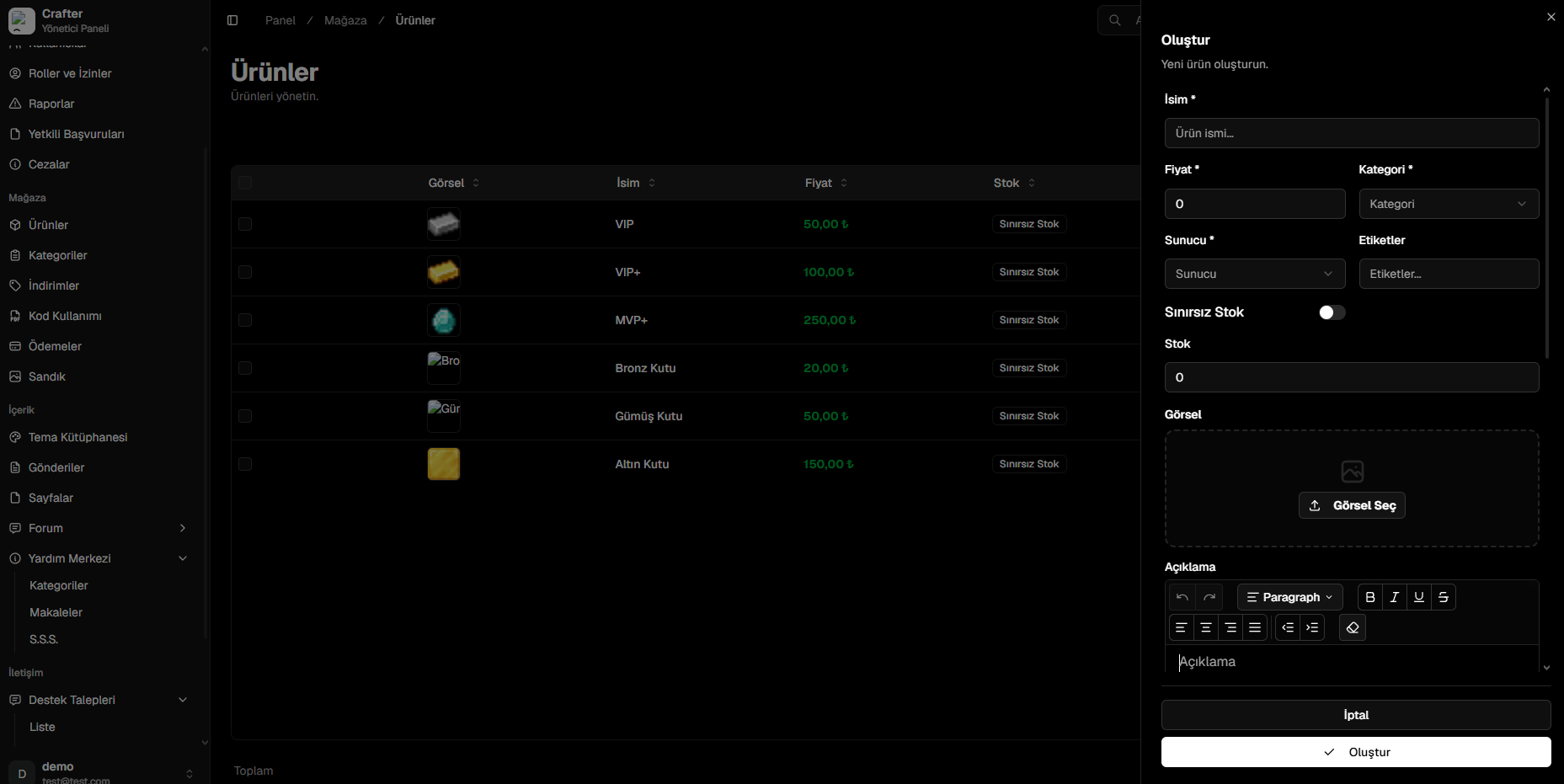
Product Creation & Configuration Drawer
Supported Command Placeholders
Use dynamic placeholders to insert the purchaser’s data into delivery commands:Example Fulfillment Scenarios
- Rank & VIP Delivery (LuckPerms)
- Crate Keys & Currency