
- Dashboard: Dashboard > Staff Applications
- Public Application URL:
yourdomain.com/applications/form
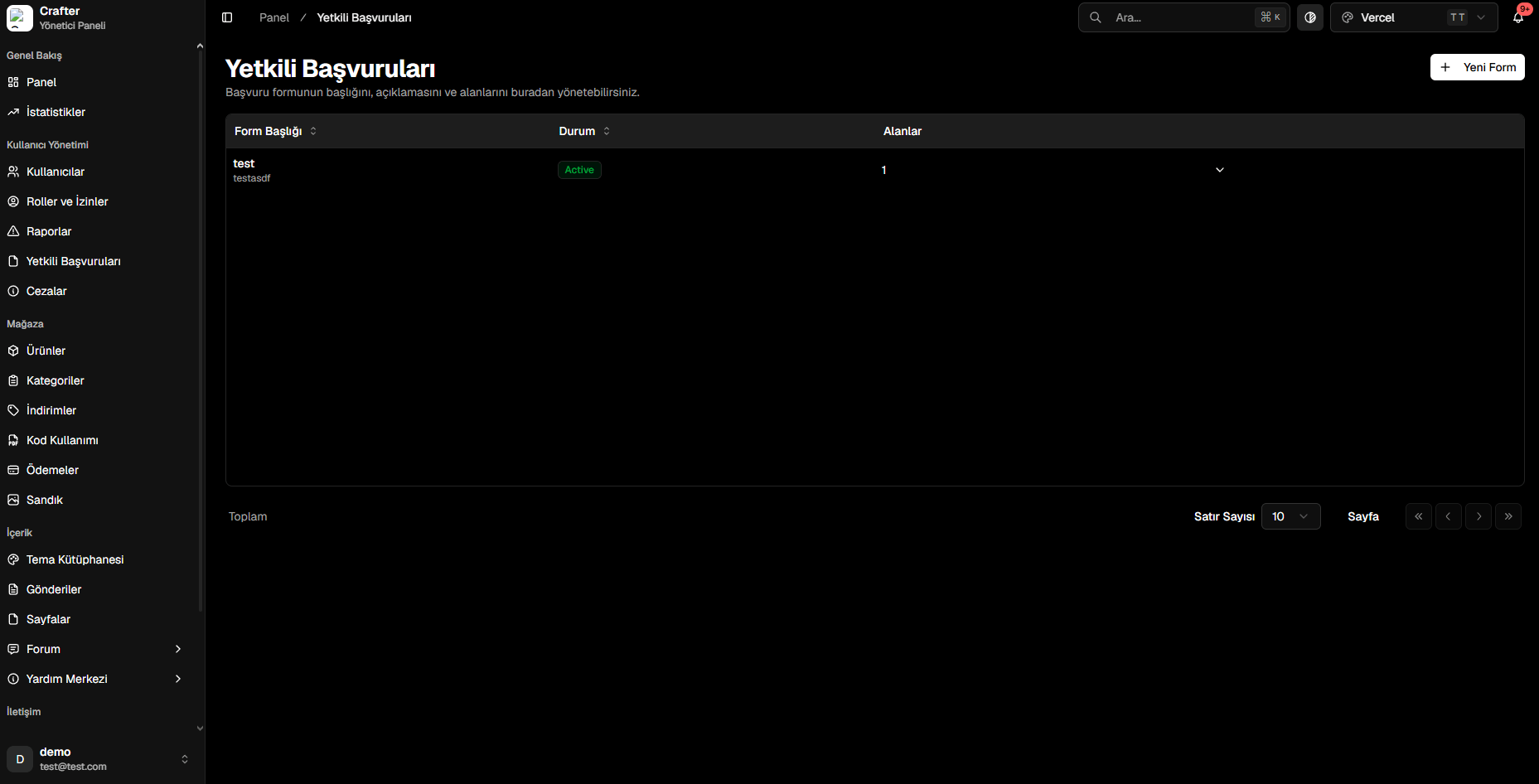
Staff Applications Overview & Form Management
Creating a Dynamic Application Form
Design custom questionnaires tailored to specific staff positions:1
Open Form Builder
Navigate to Dashboard > Staff Applications and click New Form in the top-right corner.
2
Configure General Information
- Form Title: Display name on the website (e.g., Helper Recruitment, Moderator Application).
- Description: Requirements, age guidelines, or rules for applicants.
3
Add Dynamic Fields
Click + Add Field to insert questions. Choose custom labels, placeholders, and data types.
4
Publish Form
Click Create to make the form publicly available on your website.
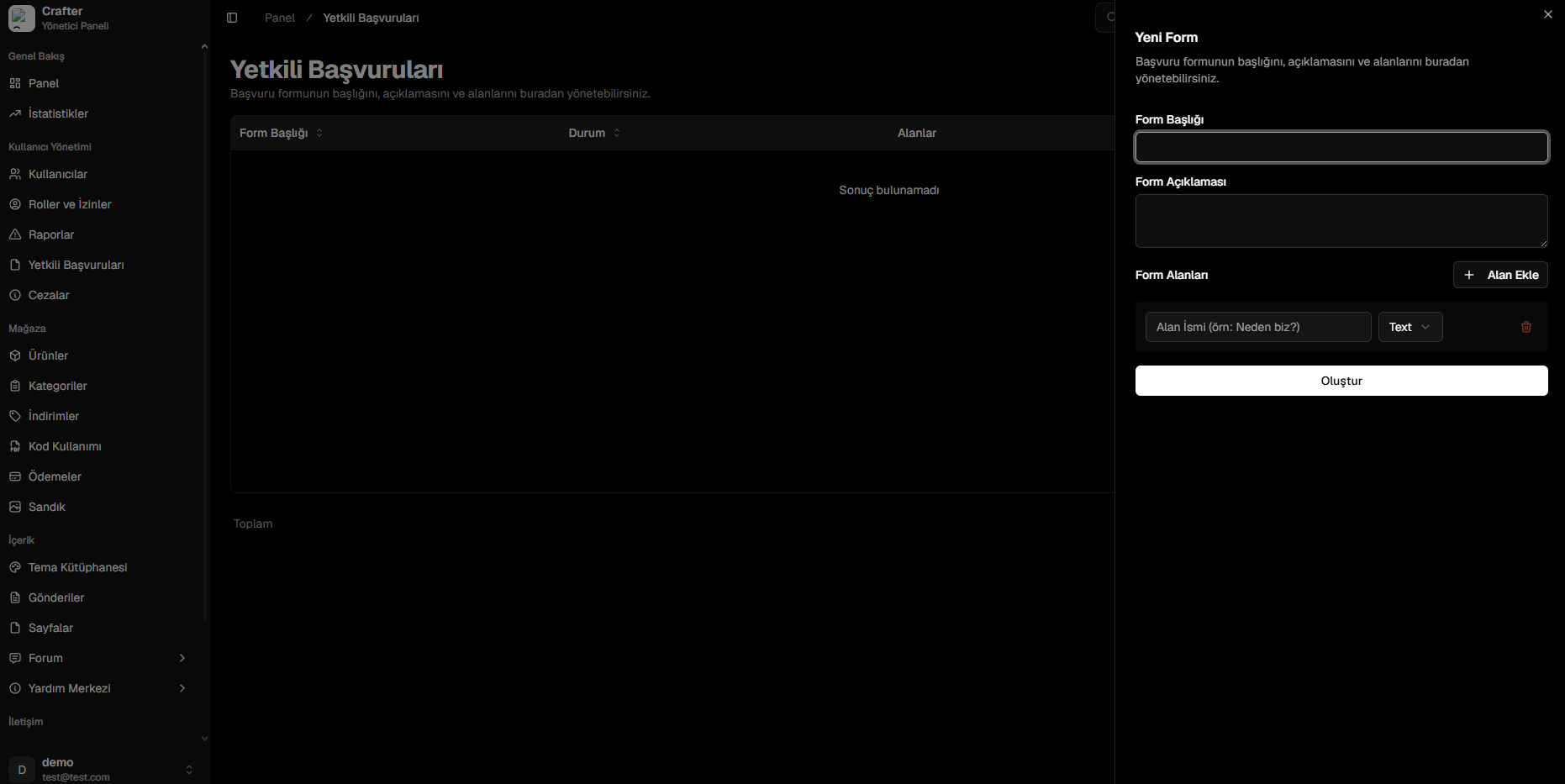
Form Field Builder
Supported Field Types
- Text: Short or multi-line paragraph answers (e.g., “Why do you want to join our team?”).
- Number: Numeric input (e.g., Age, daily active hours).
- Email: Validated email format.
- Phone: Phone number input.
- Date/Time: Date picker for birthdays or availability.
- Checkbox: Confirmation toggles (e.g., “I have read and agree to staff rules”).
- Select: Dropdown menu for single-choice answers (e.g., Preferred Realm / Gamemode).
Reviewing Submissions
When applicants submit forms atyourdomain.com/applications/form, entries are instantly available in your dashboard.
1
Filter Applications
Filter incoming applications by form title or candidate status.
2
Evaluate Candidate Answers
Open the candidate dossier to inspect submitted answers and account history.
3
Update Status
Mark the application as Approved, Rejected, or Under Review.
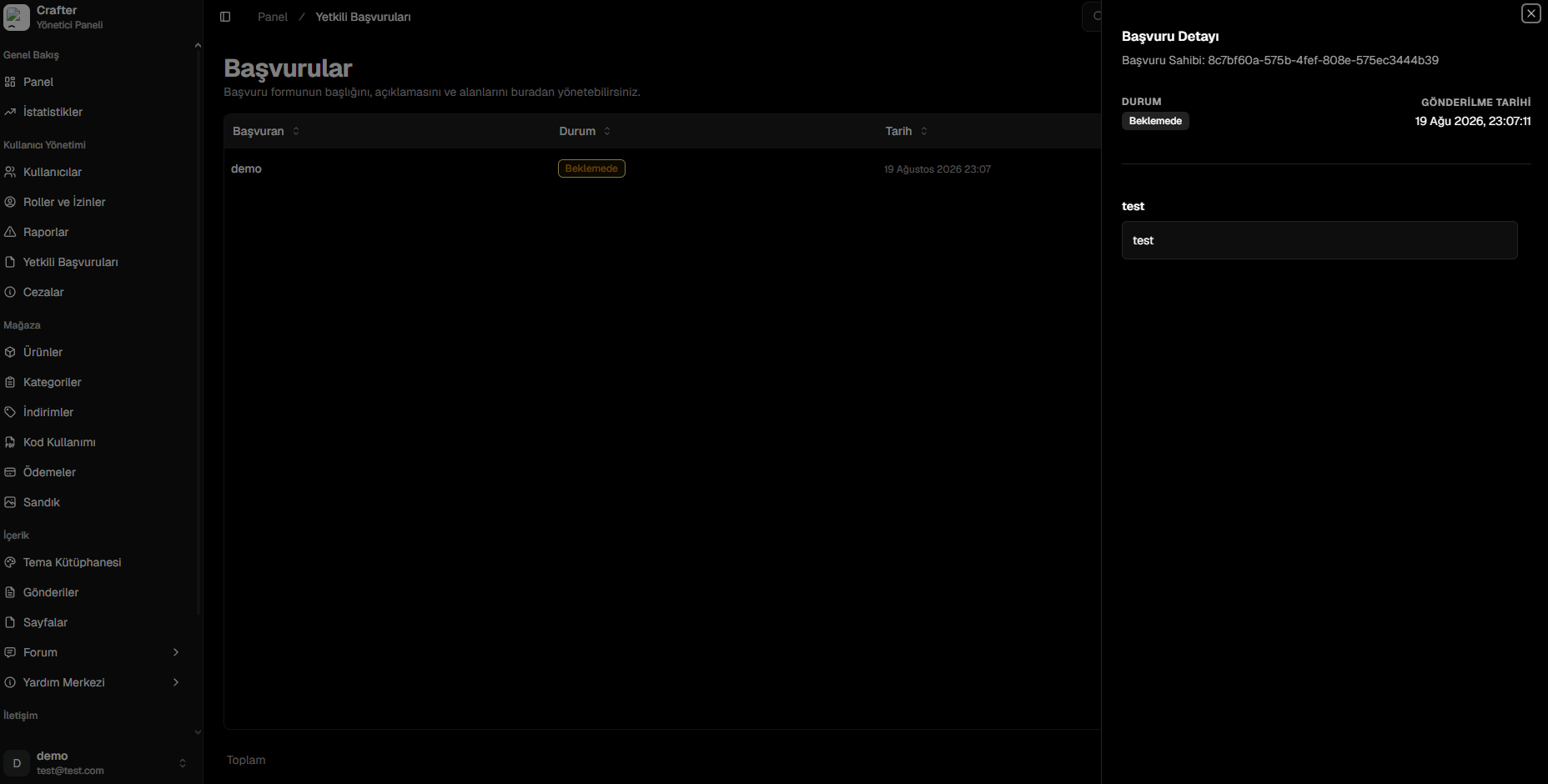
Candidate Review Screen