
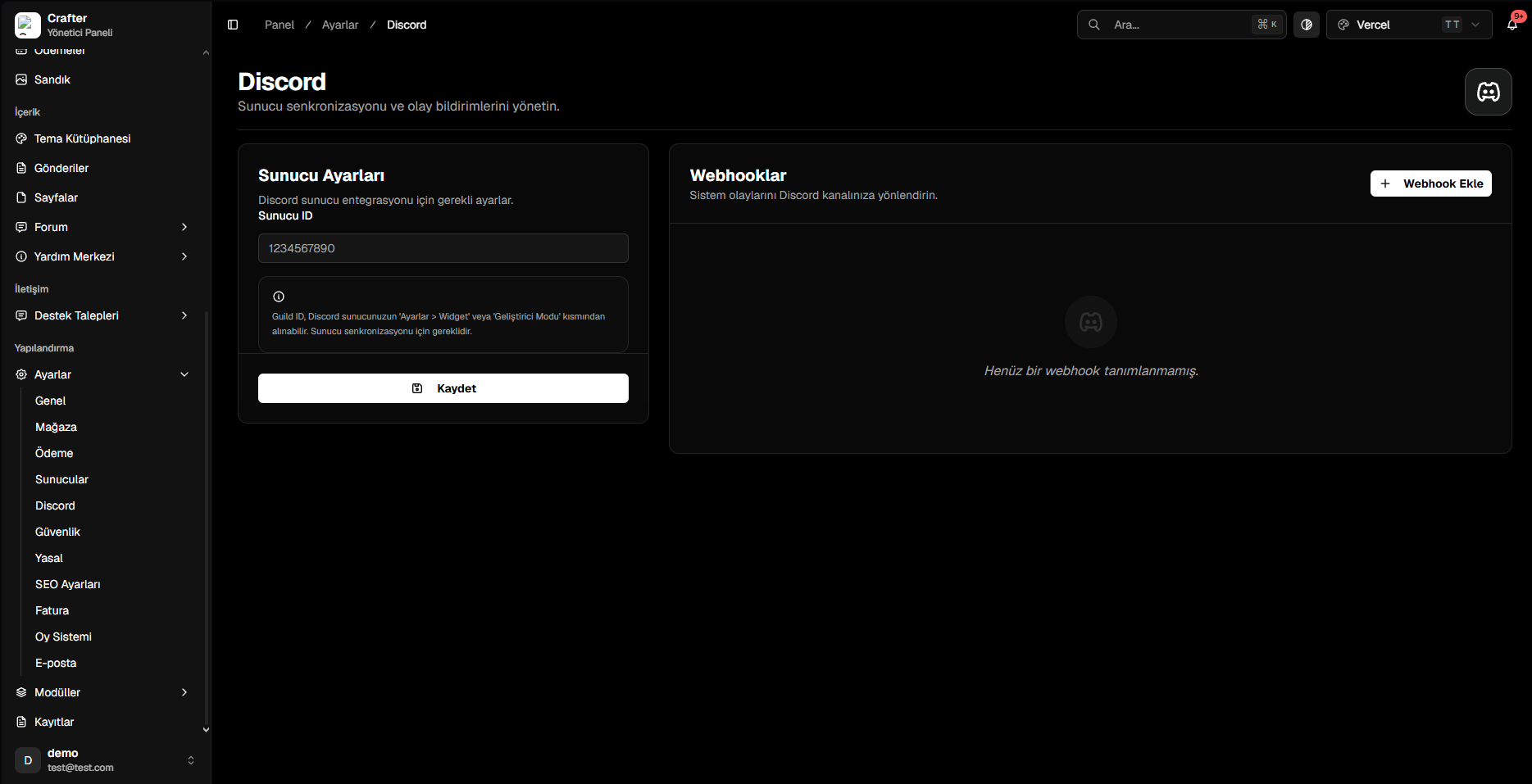
Discord Settings & Webhooks Panel
1. Discord Server (Guild ID) Setup
- Guild ID: Right-click your Discord server icon (with Developer Mode enabled) and copy your Server ID, then paste and save it to enable widget synchronization.
2. Adding a Webhook Alert
1
Open Webhook Drawer
Click + Add Webhook in the top right corner.
2
Configure Webhook Endpoint
- Webhook Name: Internal label (e.g.,
Store Purchases,Support Tickets). - Webhook URL: Destination URL copied from Discord channel integrations.
- Event: Trigger event (e.g.,
purchase_product,balance_load_success,create_ticket). - Active: Enable toggle.
3
Customize Bot Avatar & Username
- Bot Username: Custom display name (e.g.,
{website_name} Bot). - Avatar URL: Image link for bot profile picture.
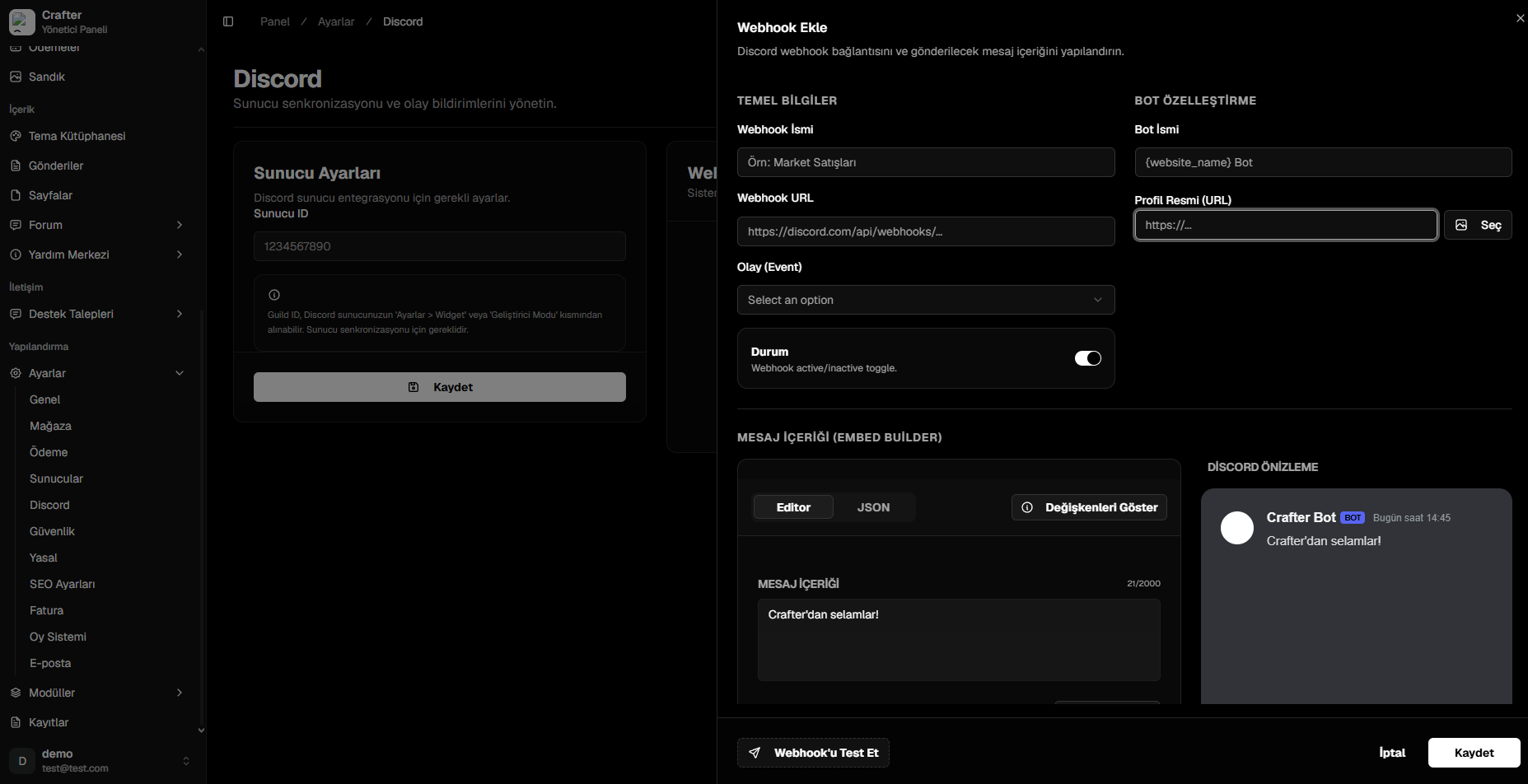
Webhook Creator & Bot Persona
3. Dynamic Variables (Placeholders)
Use{variable} placeholders inside embed titles, bodies, and footer texts:
4. Visual Embed Builder
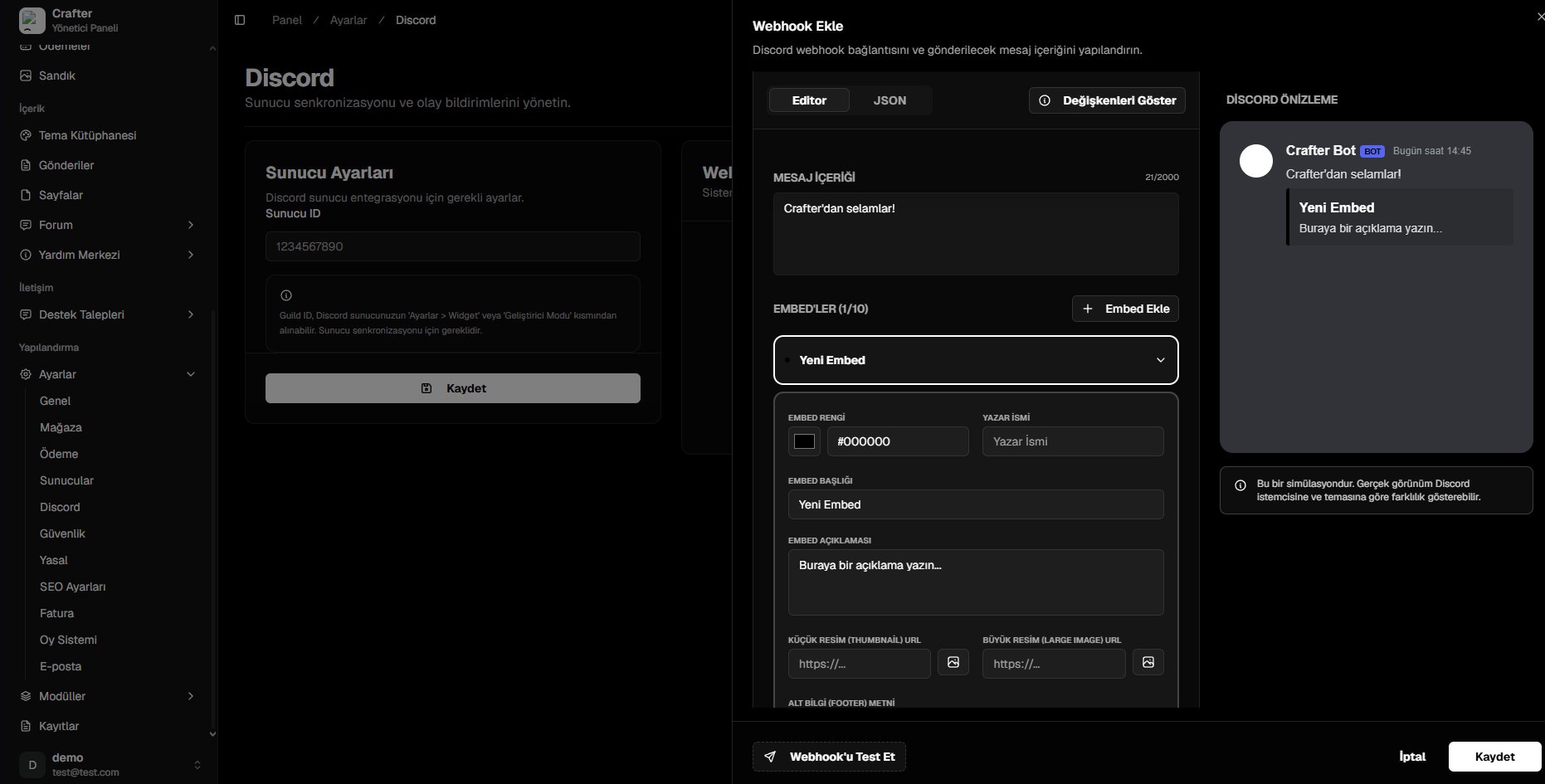
Embed Designer & Live Preview